

Step 1: Create a Lambda Function
Create a new Lambda function in AWS. Choose Python 3.12 as the runtime for compatibility.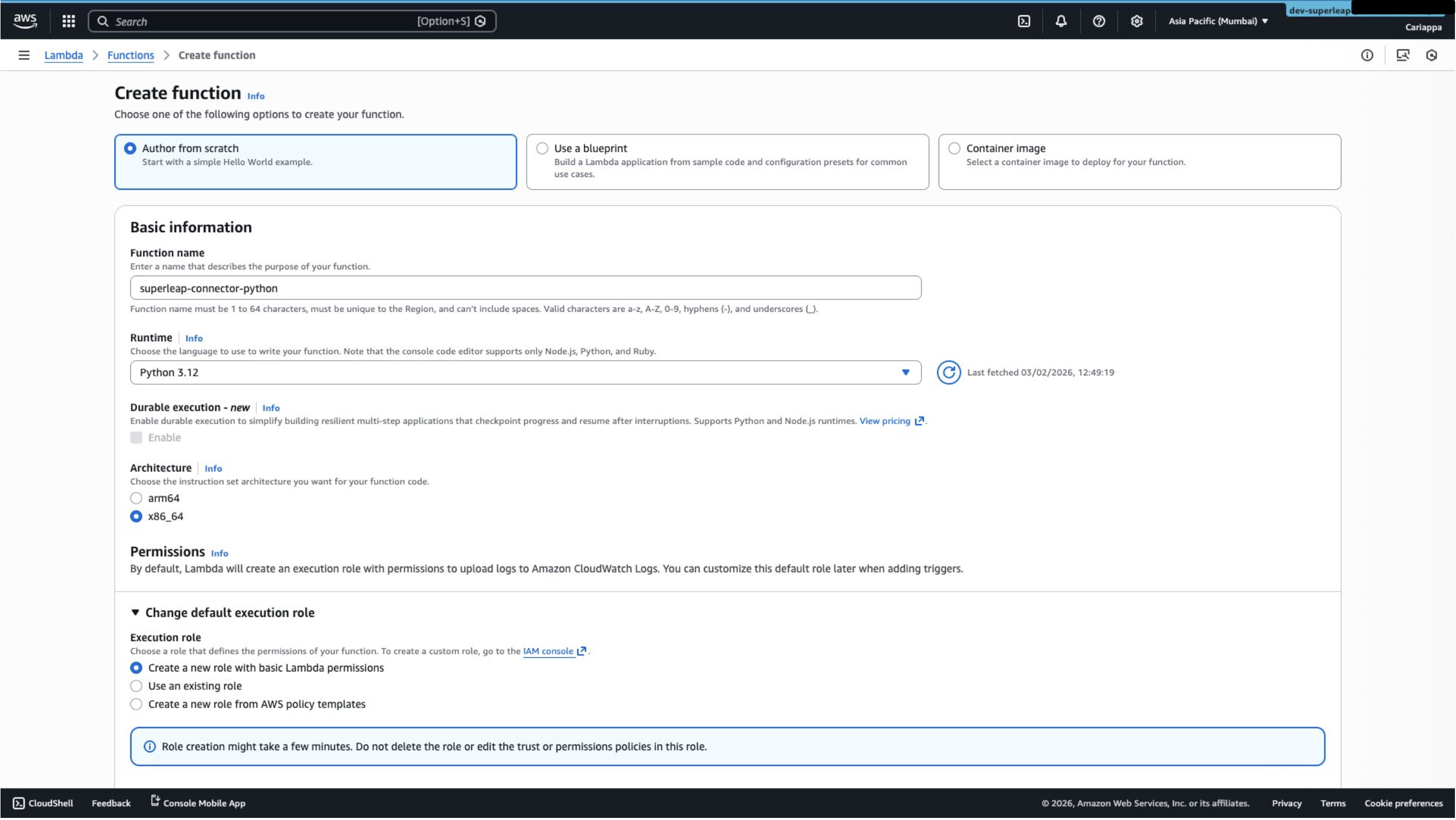
Step 2: Upload the Connector Code
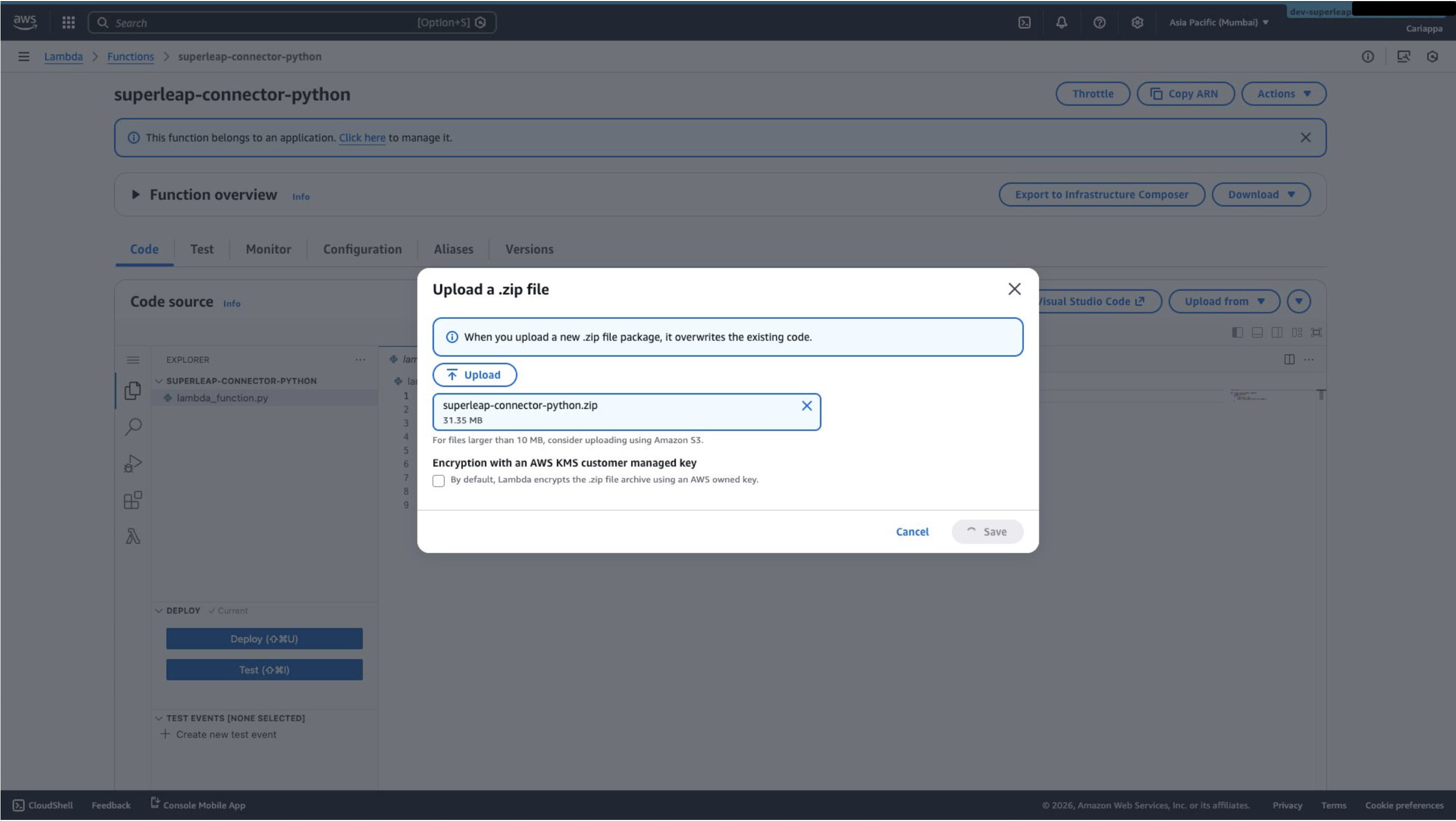
Upload thesuperleap-connector-python.zip file to the Lambda function to overwrite the default Lambda code.
Step 3: Create an IAM Policy
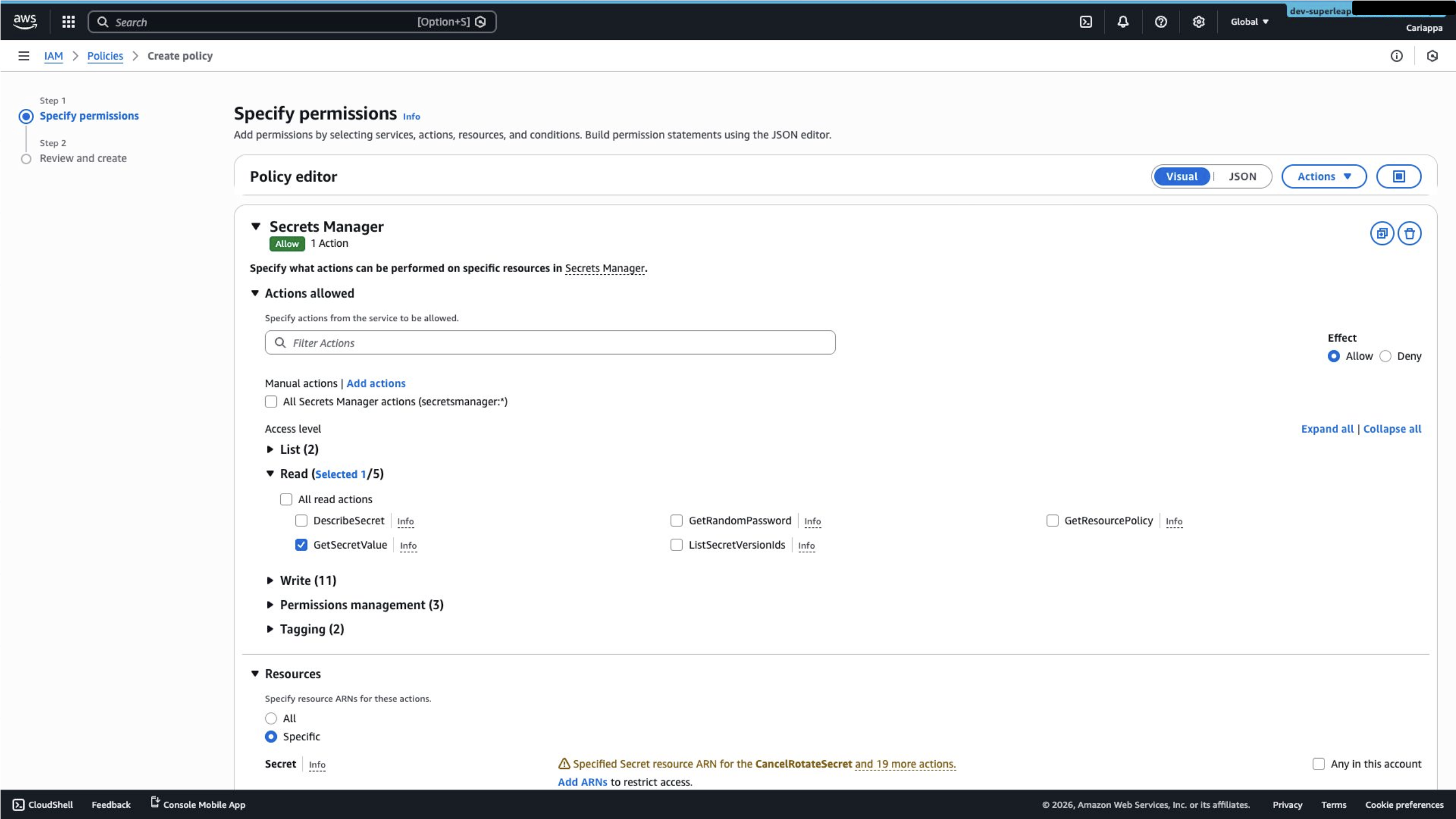
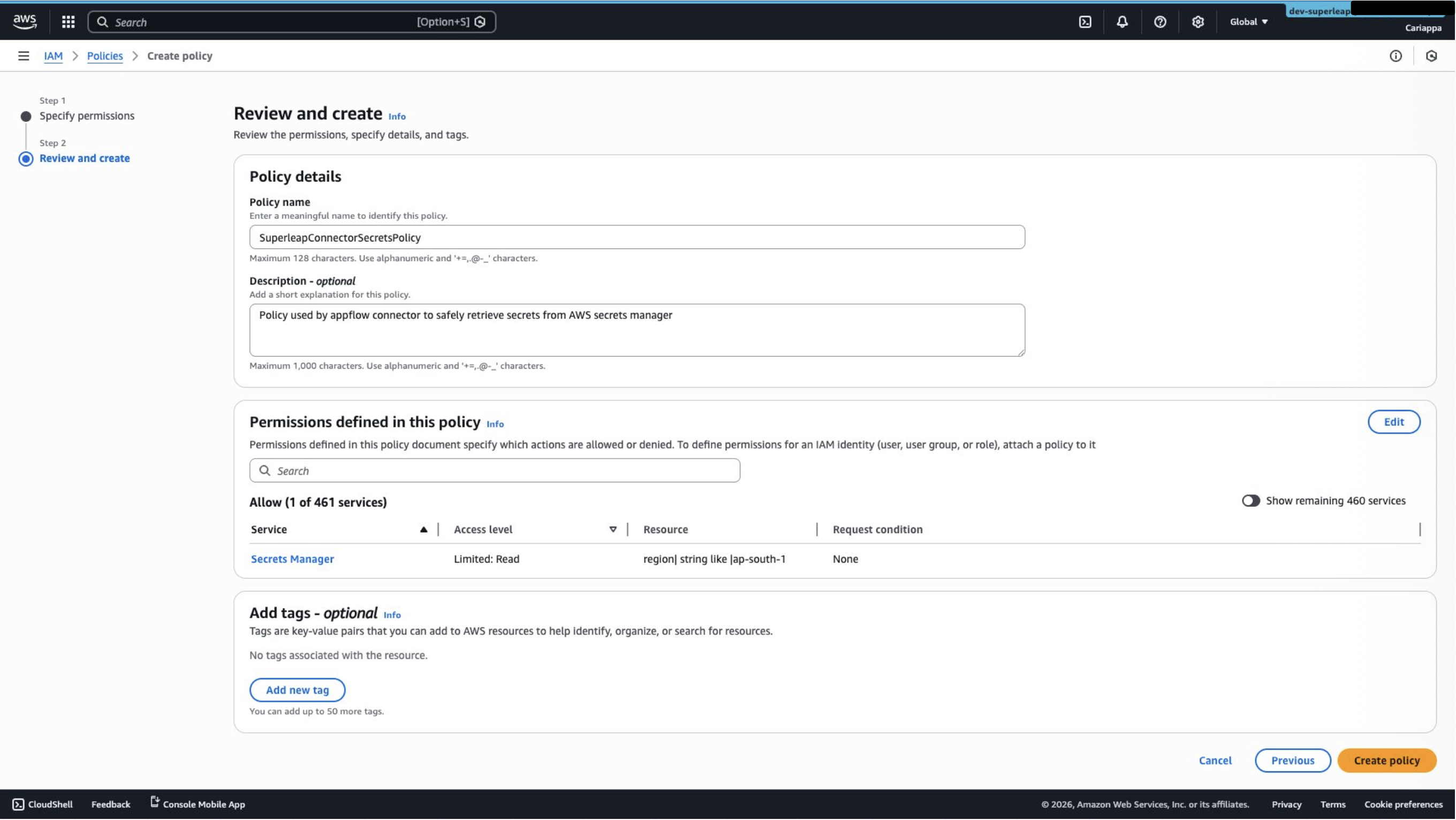
Go to IAM → Policies and create a new policy:- Choose Secrets Manager as the service
- Add the GetSecretValue permission
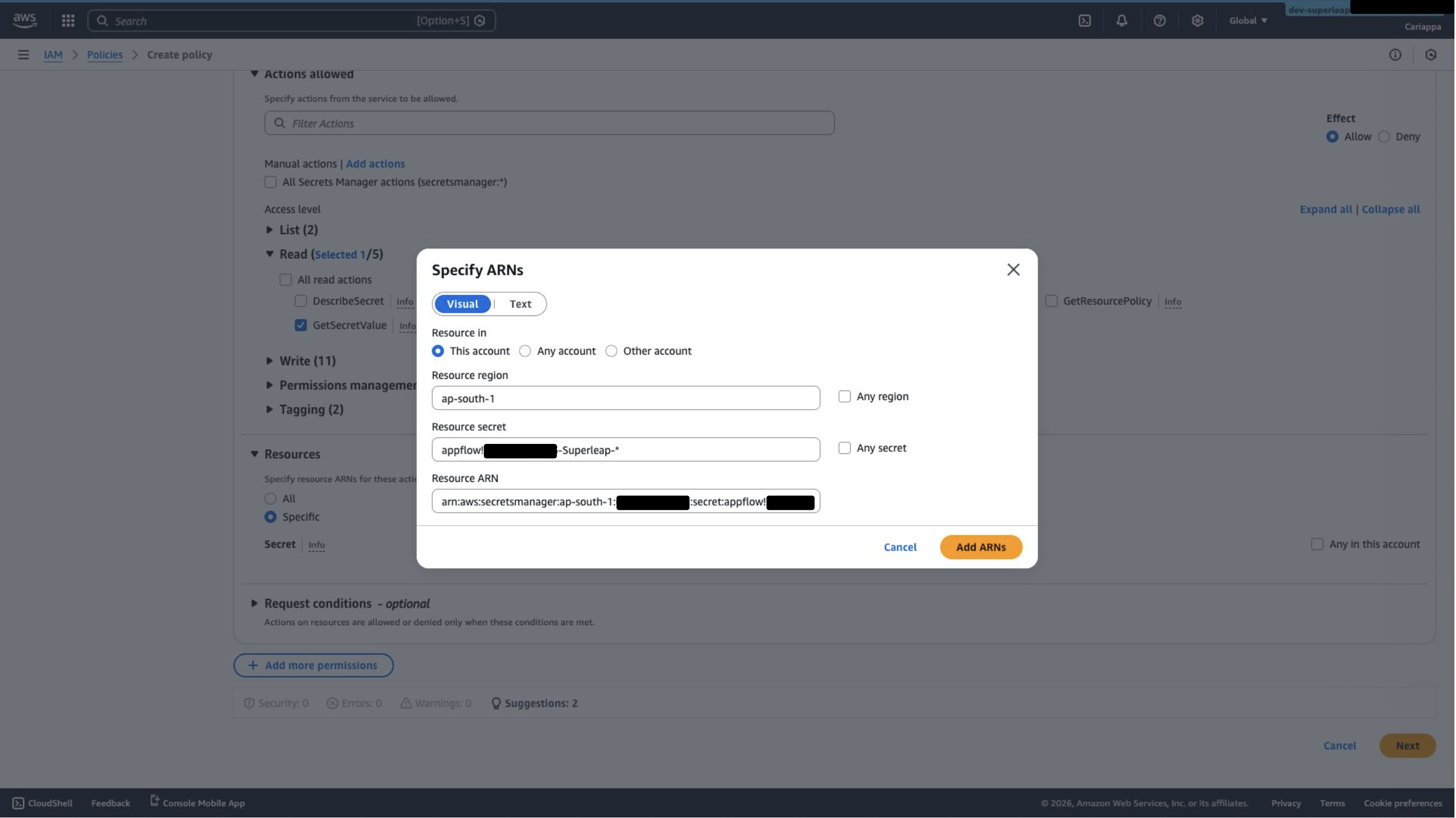
- Under Specify ARNs, choose your region and set the resource secret format to:
- Add a name and description, then create the policy
Step 4: Navigate to the Lambda Execution Role
Go to the Lambda function → Configuration → Permissions → click on the Role name shown there. This will take you to the IAM role used by the Lambda function.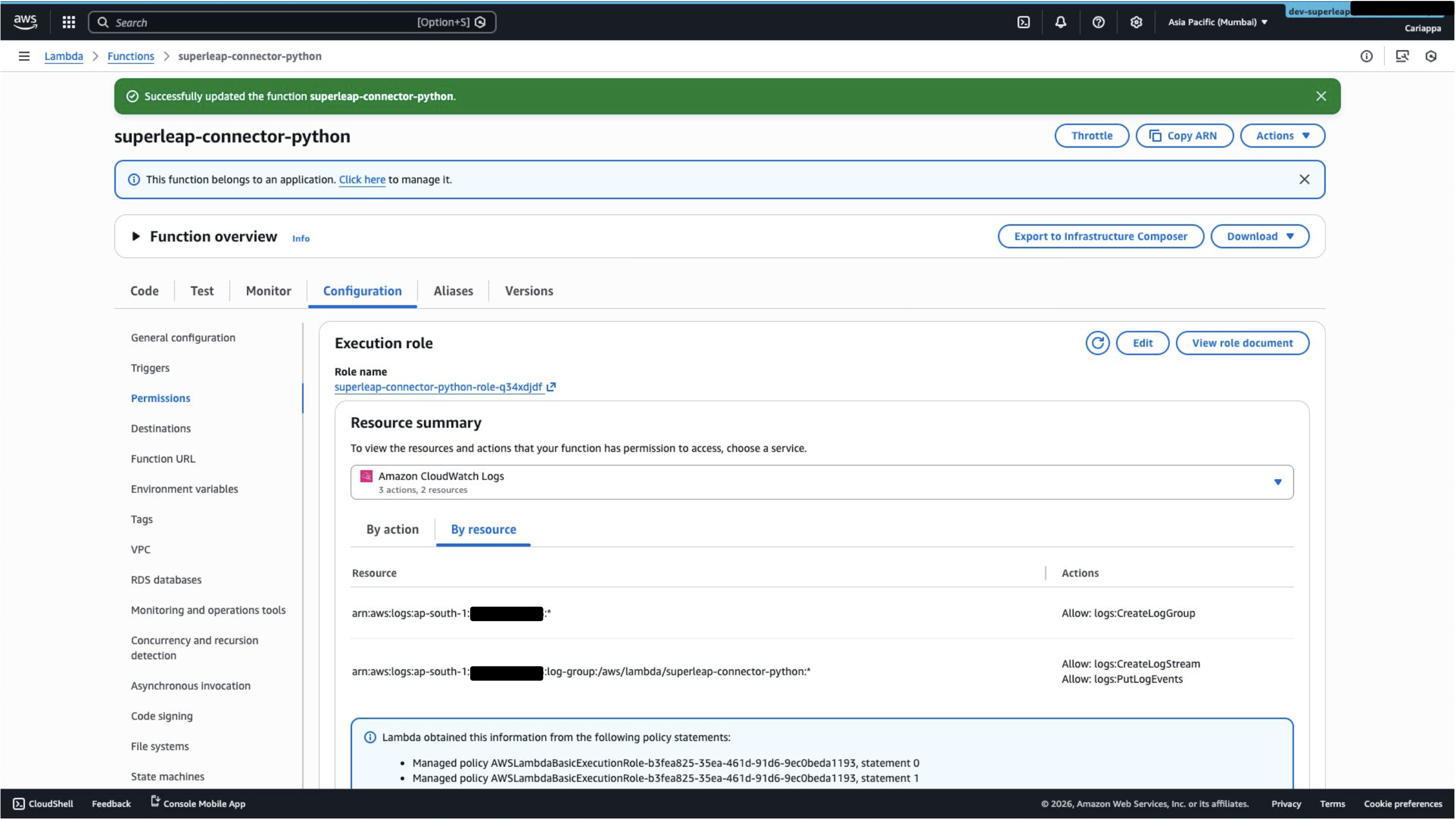
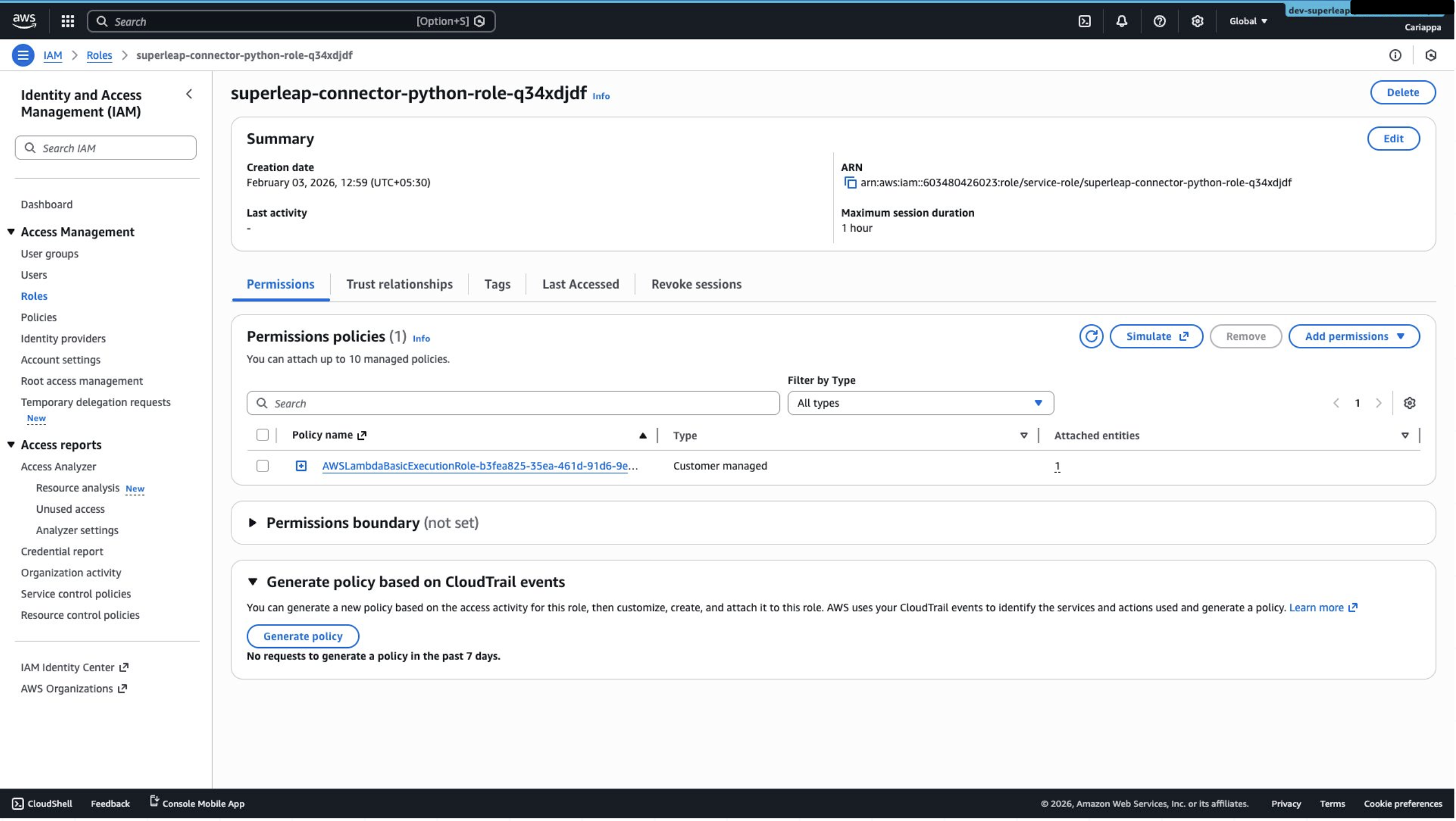
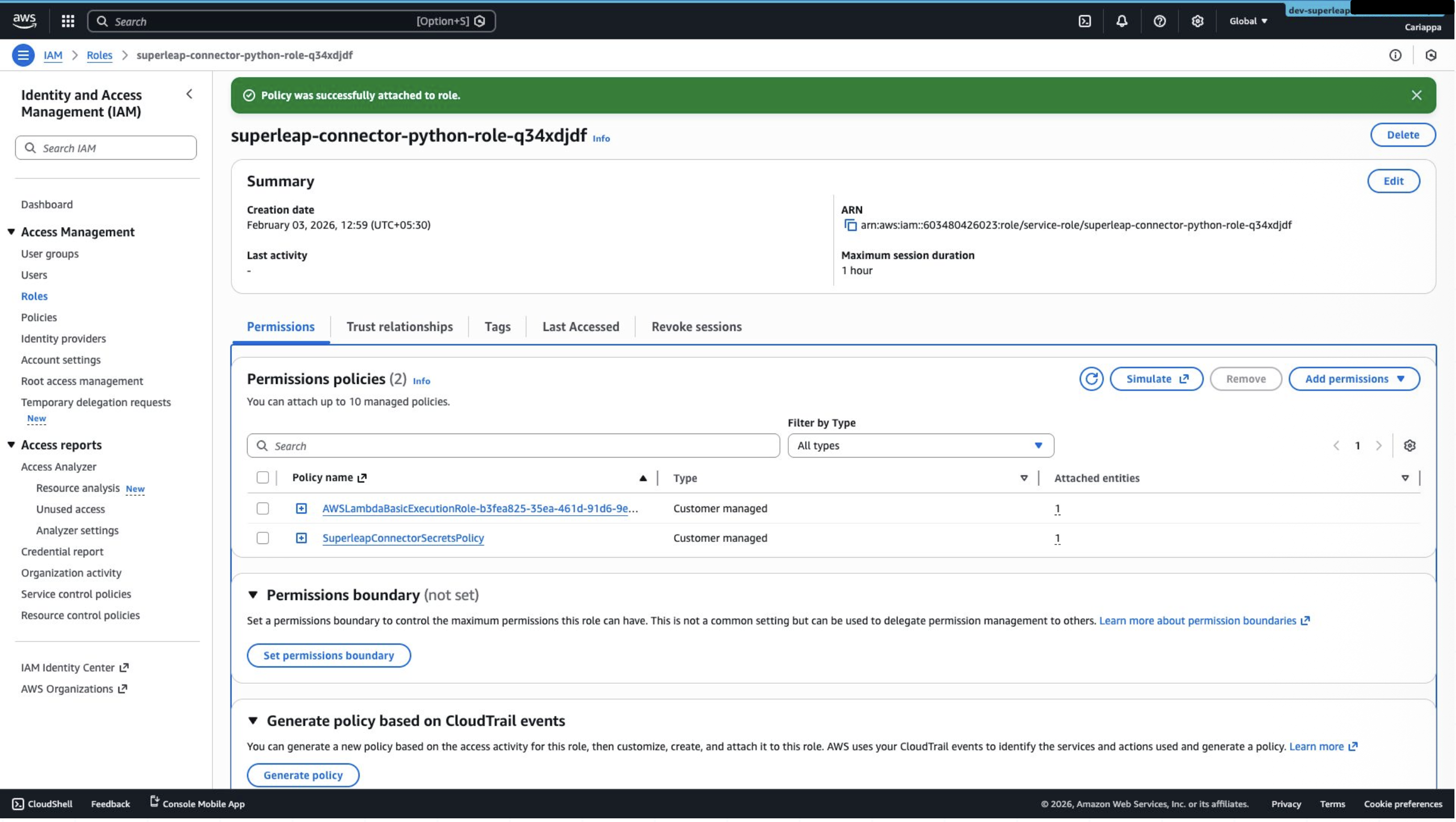
Step 5: Attach the IAM Policy to the Role
- Click Add permission and attach the policy created in Step 3 to the role
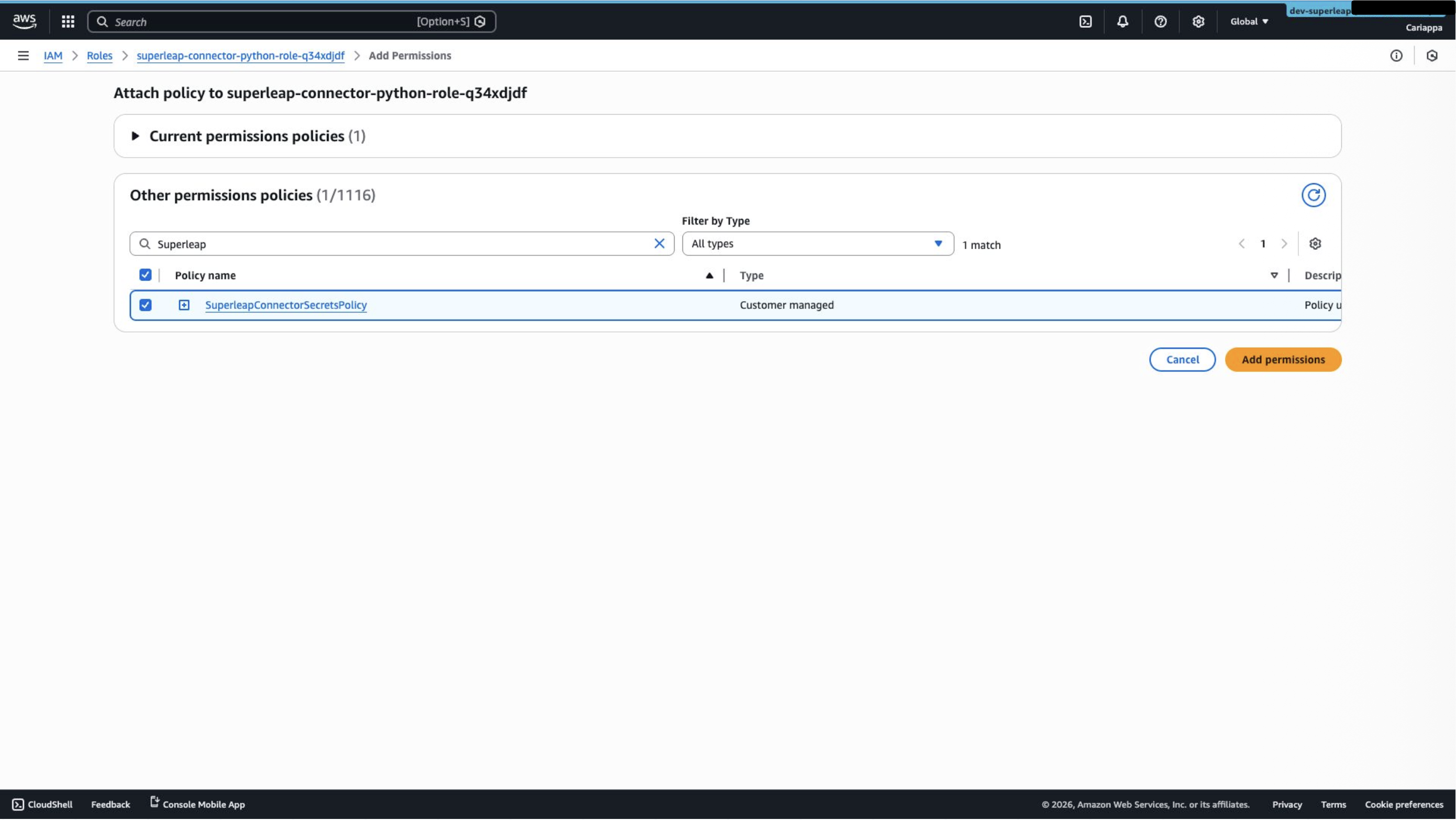
- Confirm the permission is reflected in the Lambda function’s permissions as well
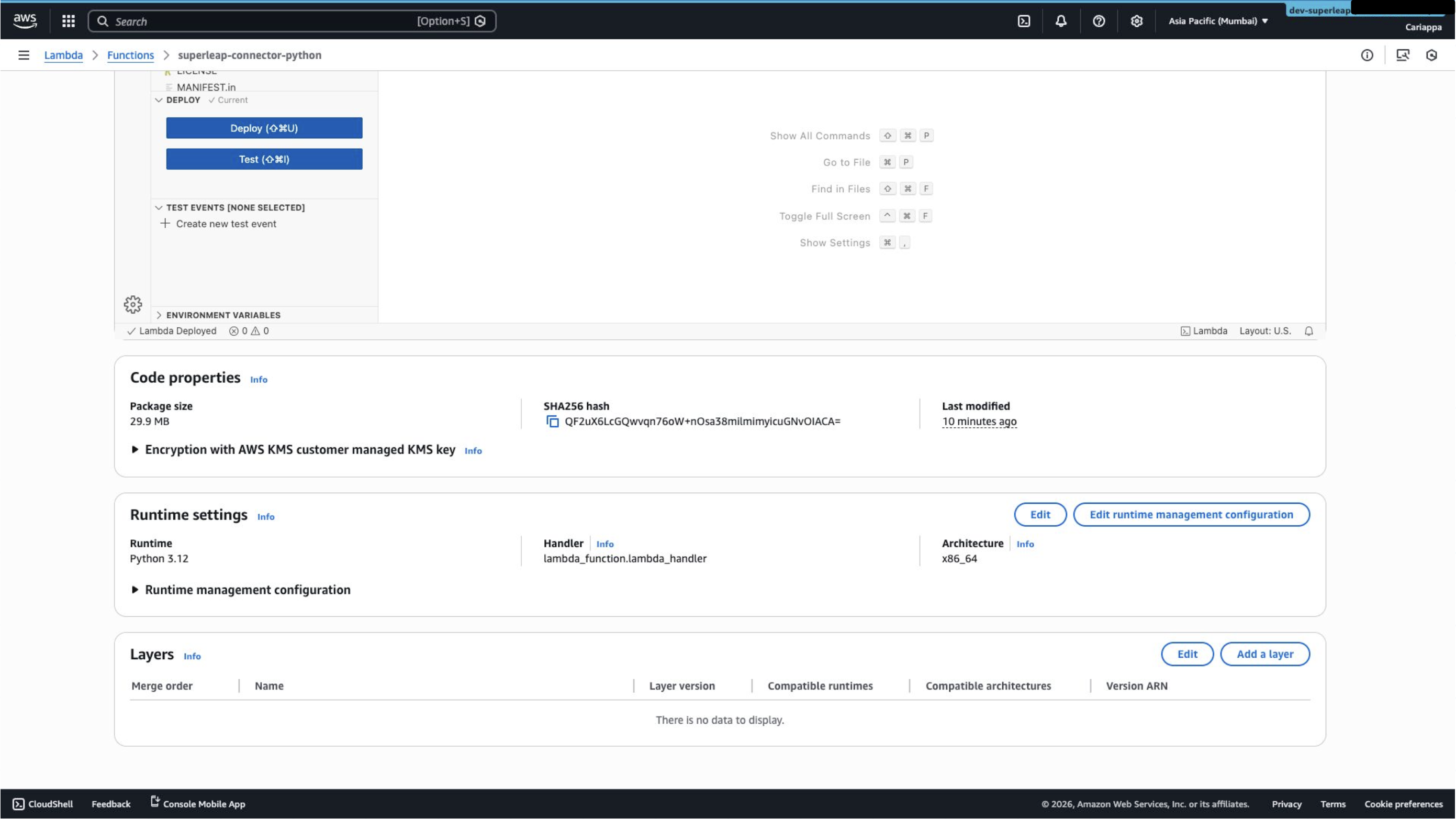
Step 6: Set the Lambda Handler
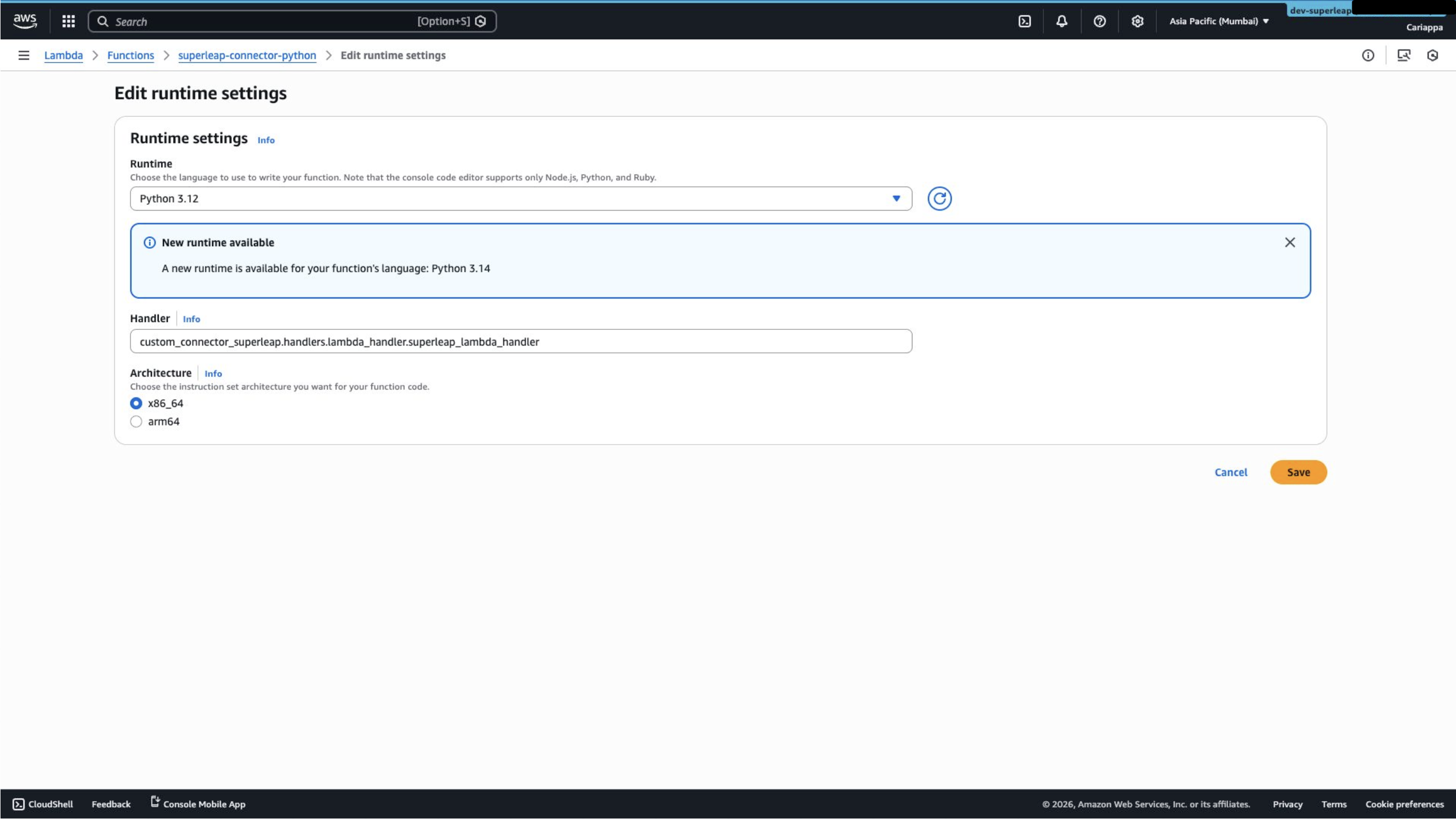
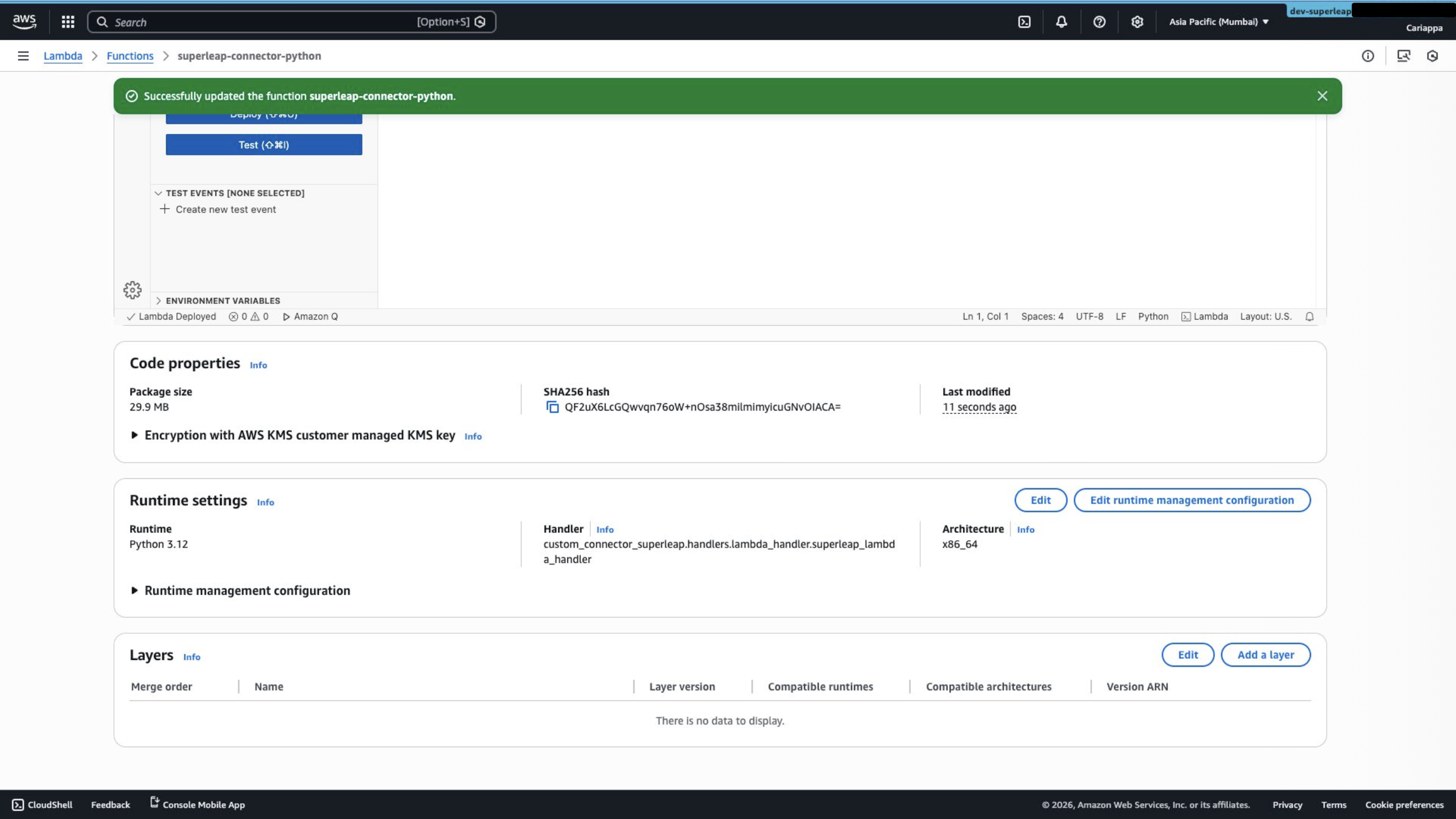
Edit the Handler under Runtime Settings:- Set the runtime to Python 3.12
- Set the handler to:
Step 7: Create and Add a Lambda Layer
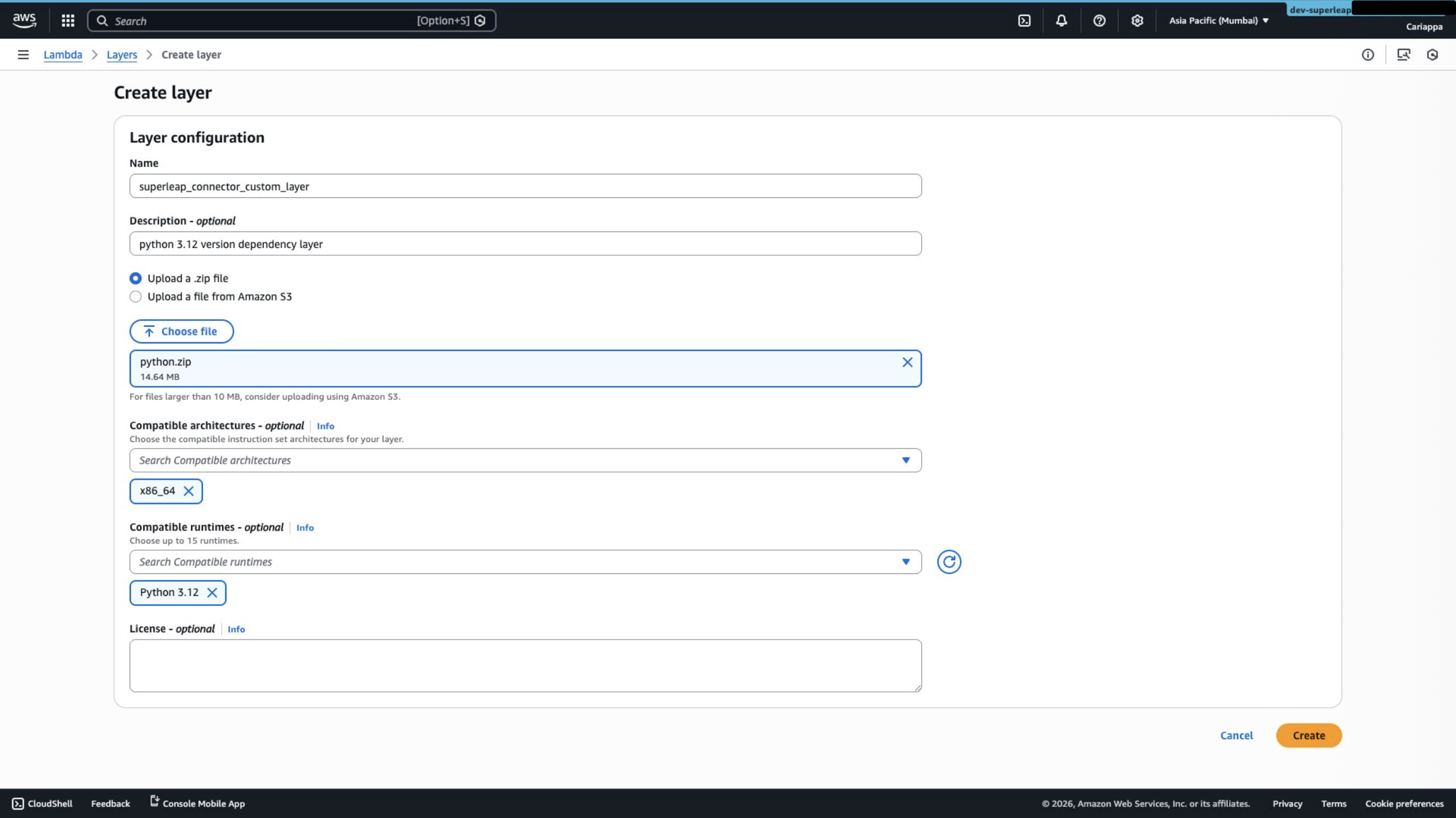
- Go to Lambda → Layers and create a new layer
- Upload the
python.zipfile - Set the compatible runtime to Python 3.12 and architecture to x86_64
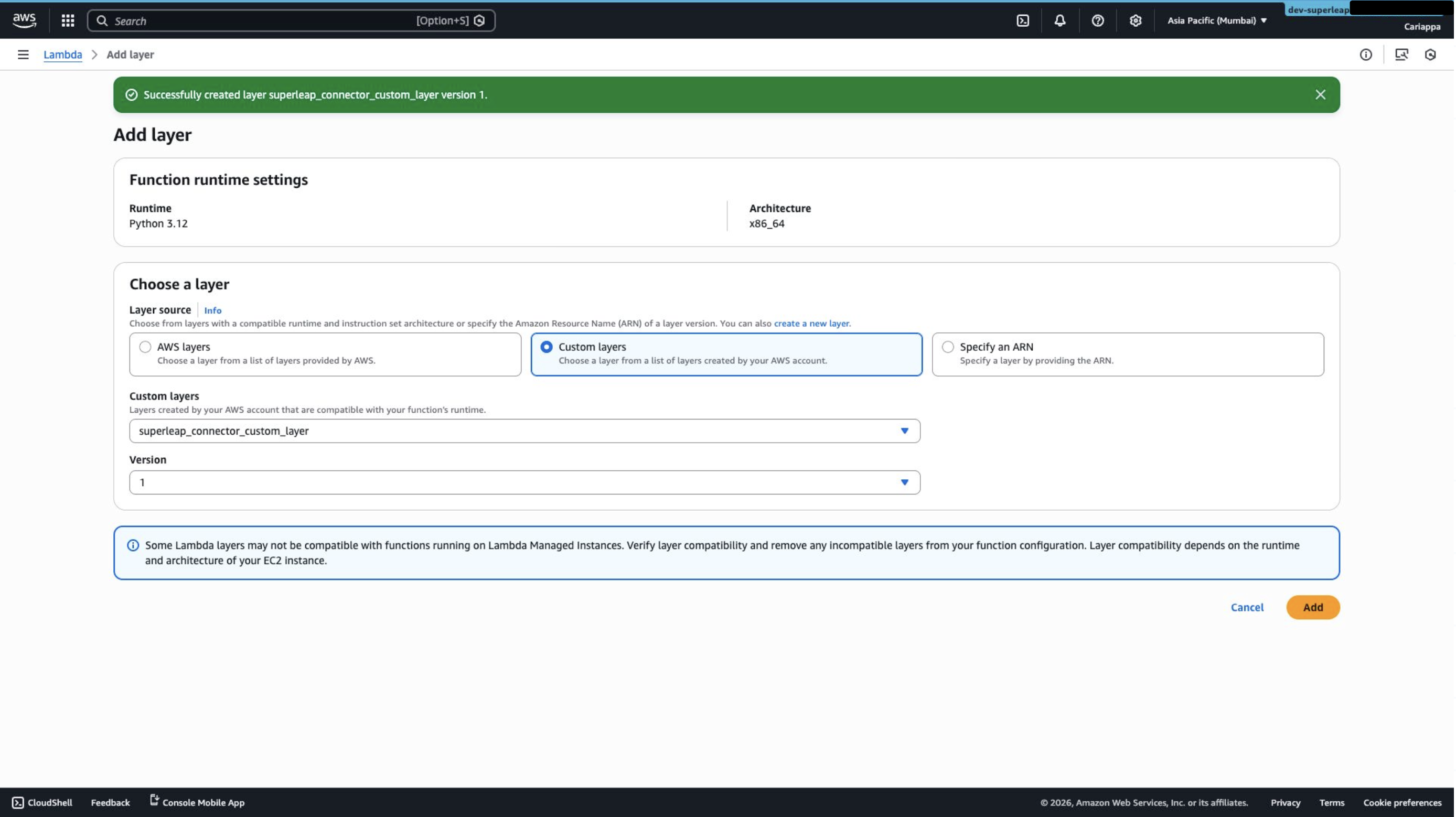
- Go back to the Lambda function, scroll down to Layers, and click Add a layer
- Choose Custom layers and select the layer created above
Step 8: Add a Resource-Based Policy
In the Lambda function, scroll down to Resource-based policy statements and add a new permission: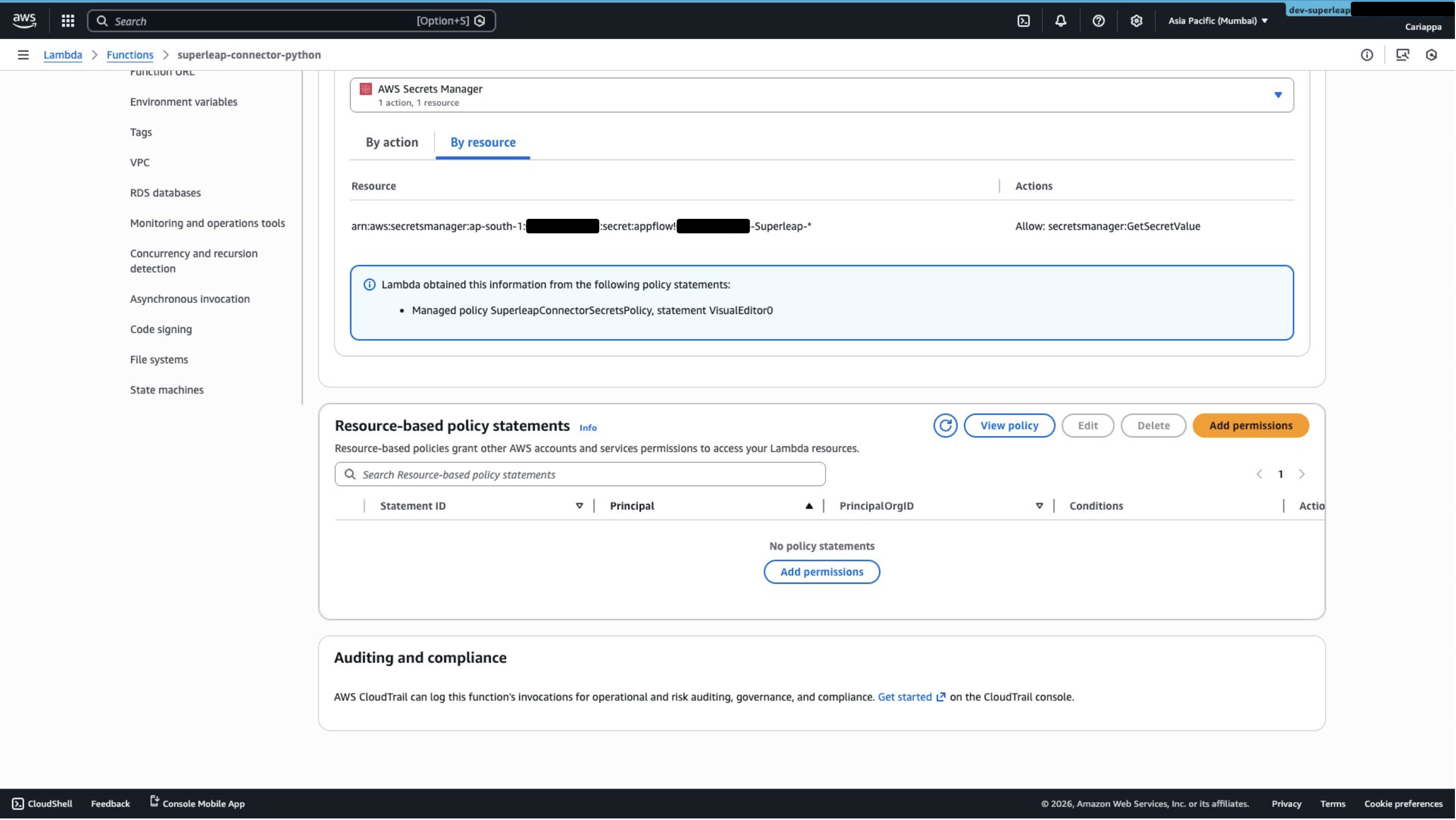
- Principal:
appflow.amazonaws.com - Action:
lambda:InvokeFunction
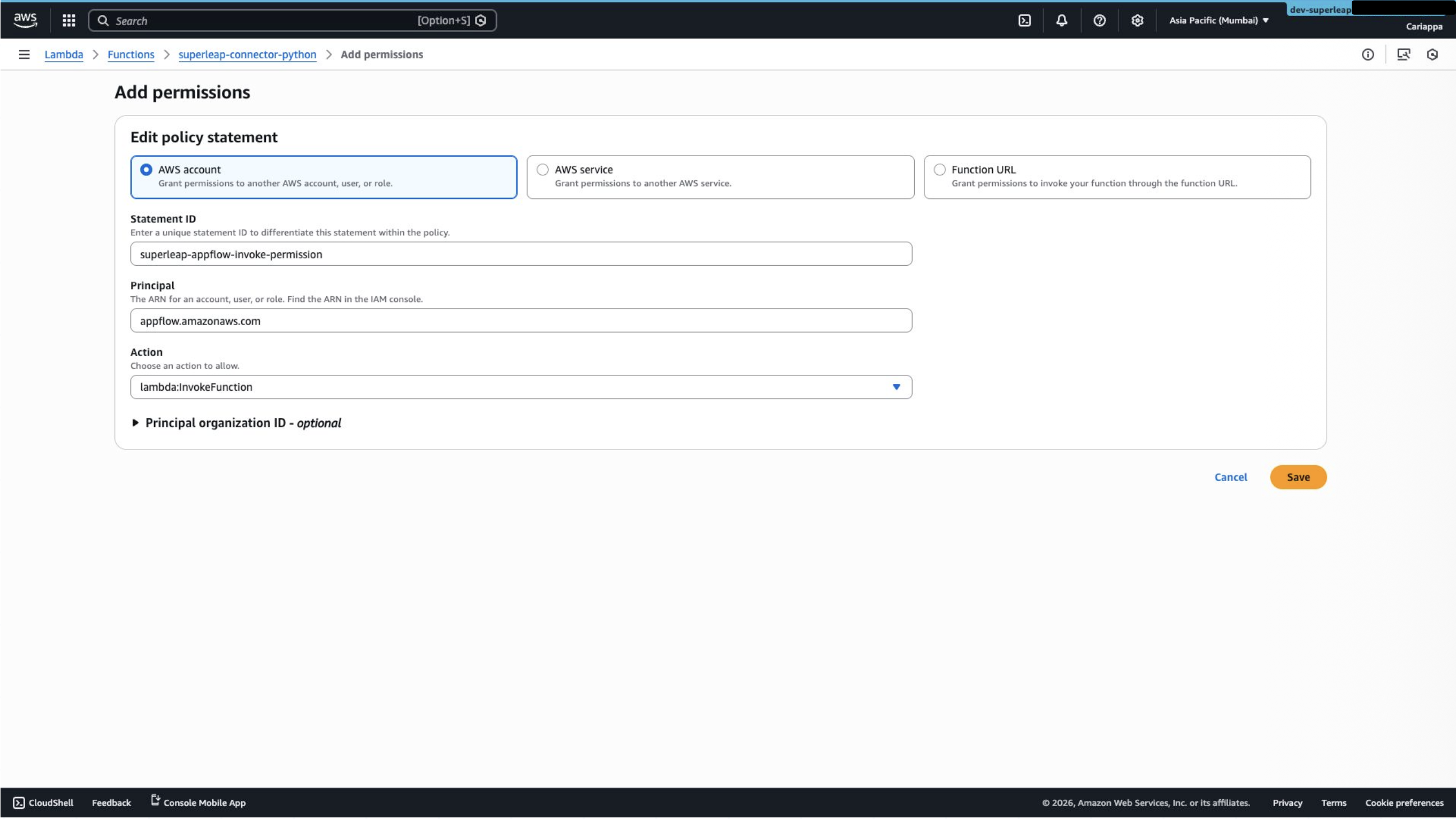 Save the policy.
Once these steps are complete, proceed to Configuration to register the connector in AppFlow and create your first flow.