Step 1: Create a New Source in Airbyte
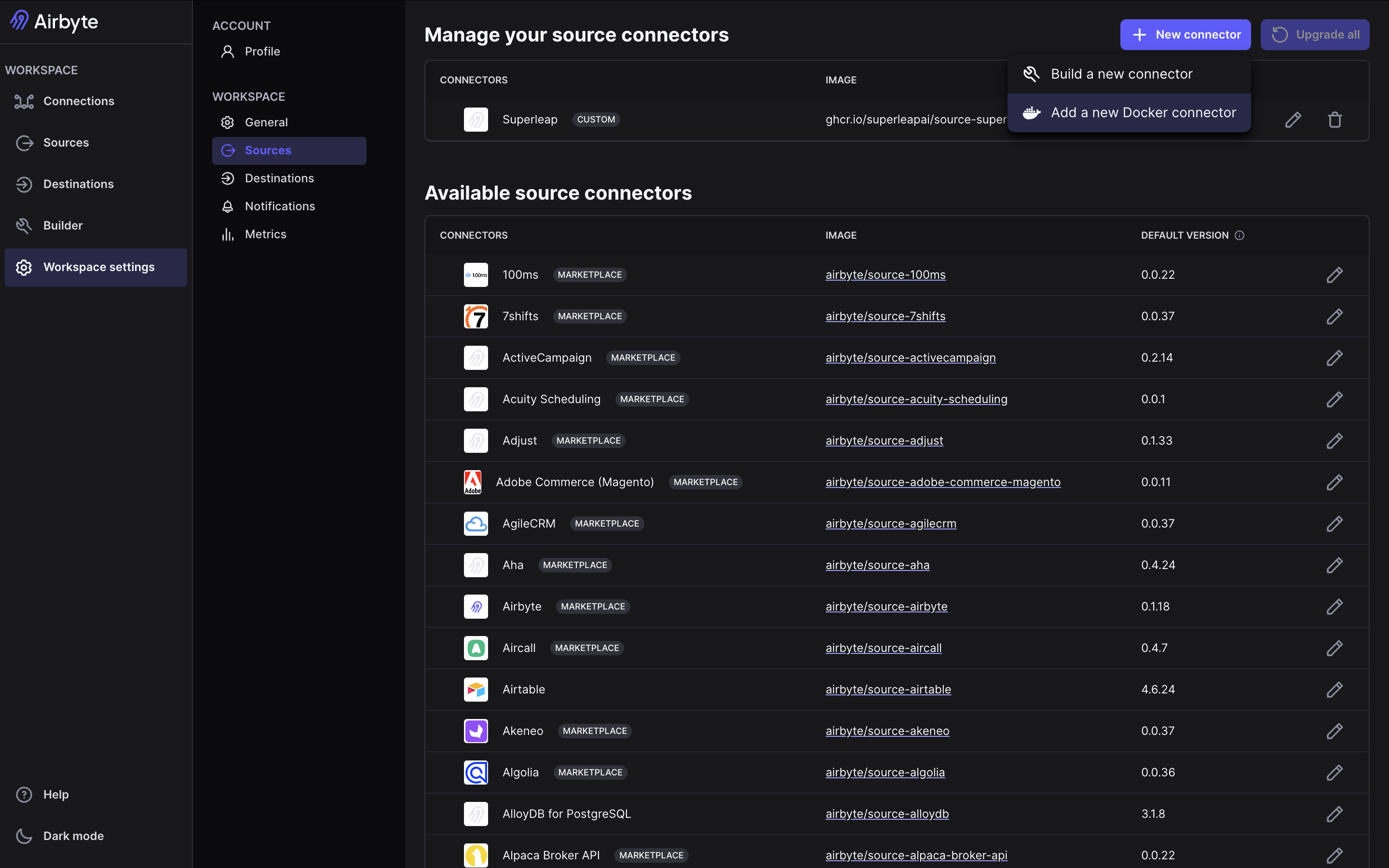
In your Airbyte workspace:- Go to Sources
- Click + New source
- Select the option to add a new docker container source (the exact wording may vary based on your Airbyte version)
Step 2: Enter Docker Image Details
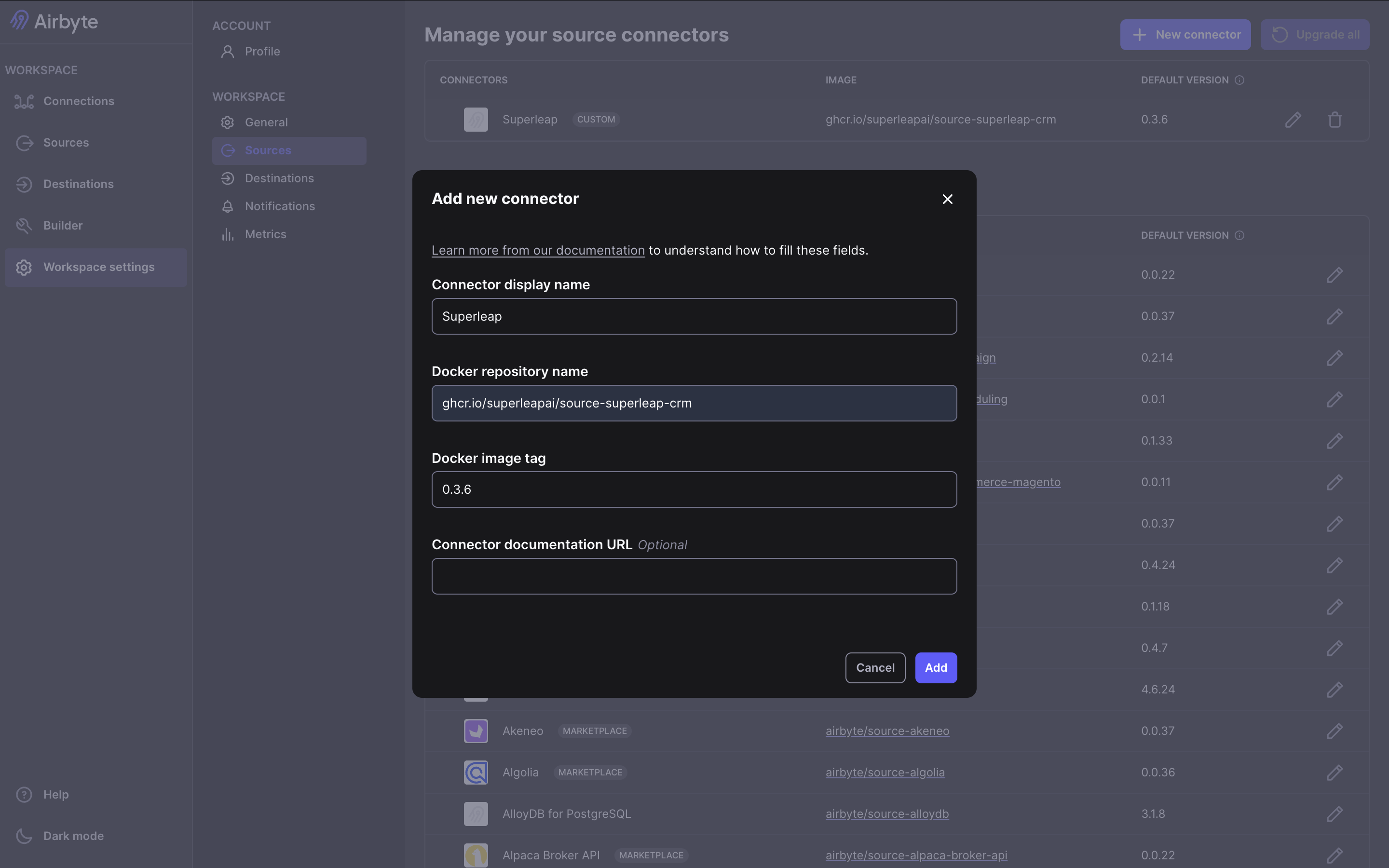
In the connector setup screen, enter the image details for the Superleap Airbyte source connector:- Fill in the connector name (Superleap)
- Set the Docker repository name (
ghcr.io/superleapai/source-superleap-crm) - Set the Docker image tag, find the latest image details here
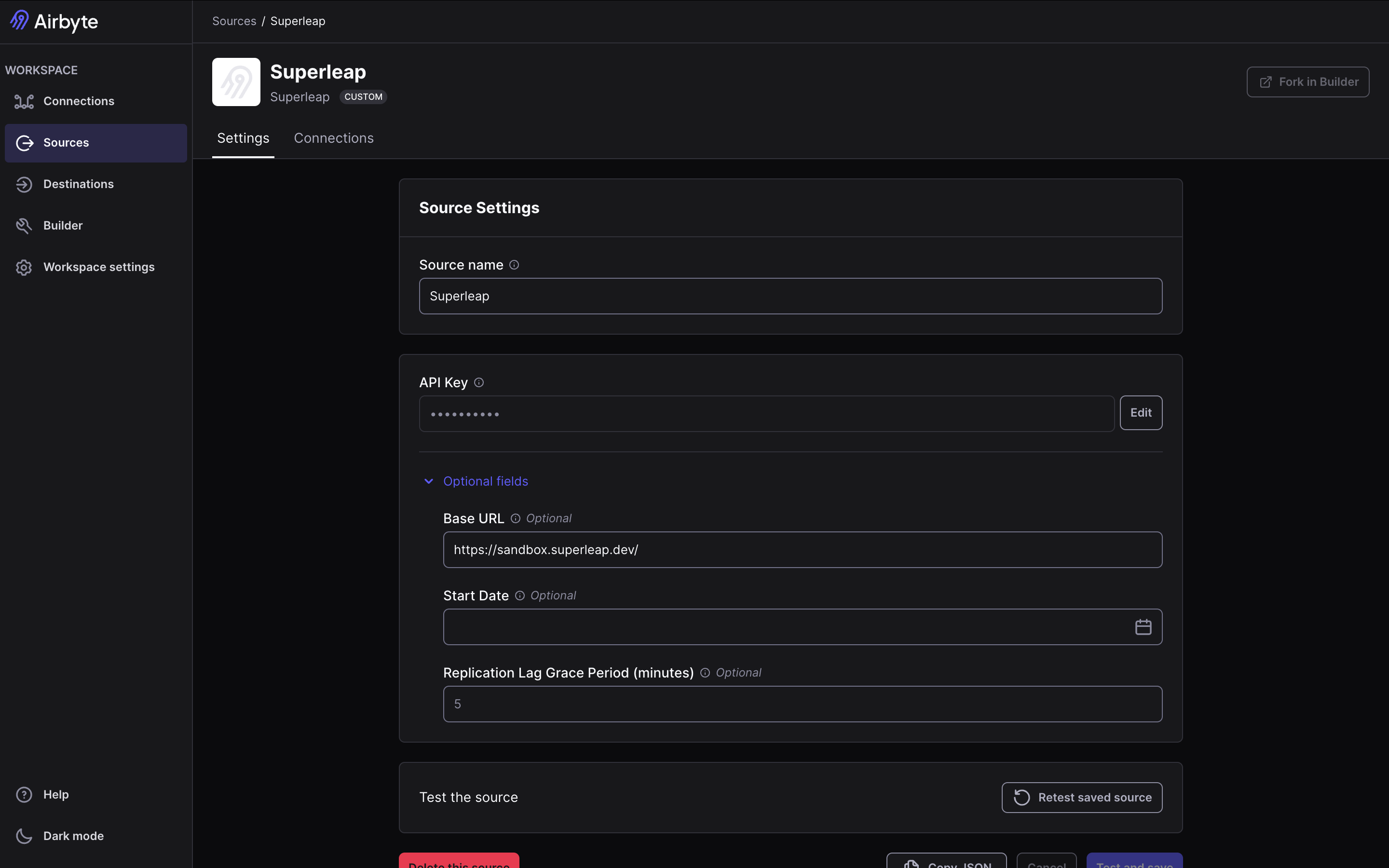
Step 3: Configure Source Settings
Provide your source configuration fields (for example API key and other required values), then validate the connection.- Enter all required connection fields
- Click Test and save (or the equivalent validation action in your Airbyte version)
- Confirm the source is successfully created