> ## Documentation Index
> Fetch the complete documentation index at: https://docs.superleap.com/llms.txt
> Use this file to discover all available pages before exploring further.
# Setup
> Step-by-step guide to deploy the Superleap Appflow Lambda connector
Follow these steps to deploy the Superleap Appflow connector in your AWS account.
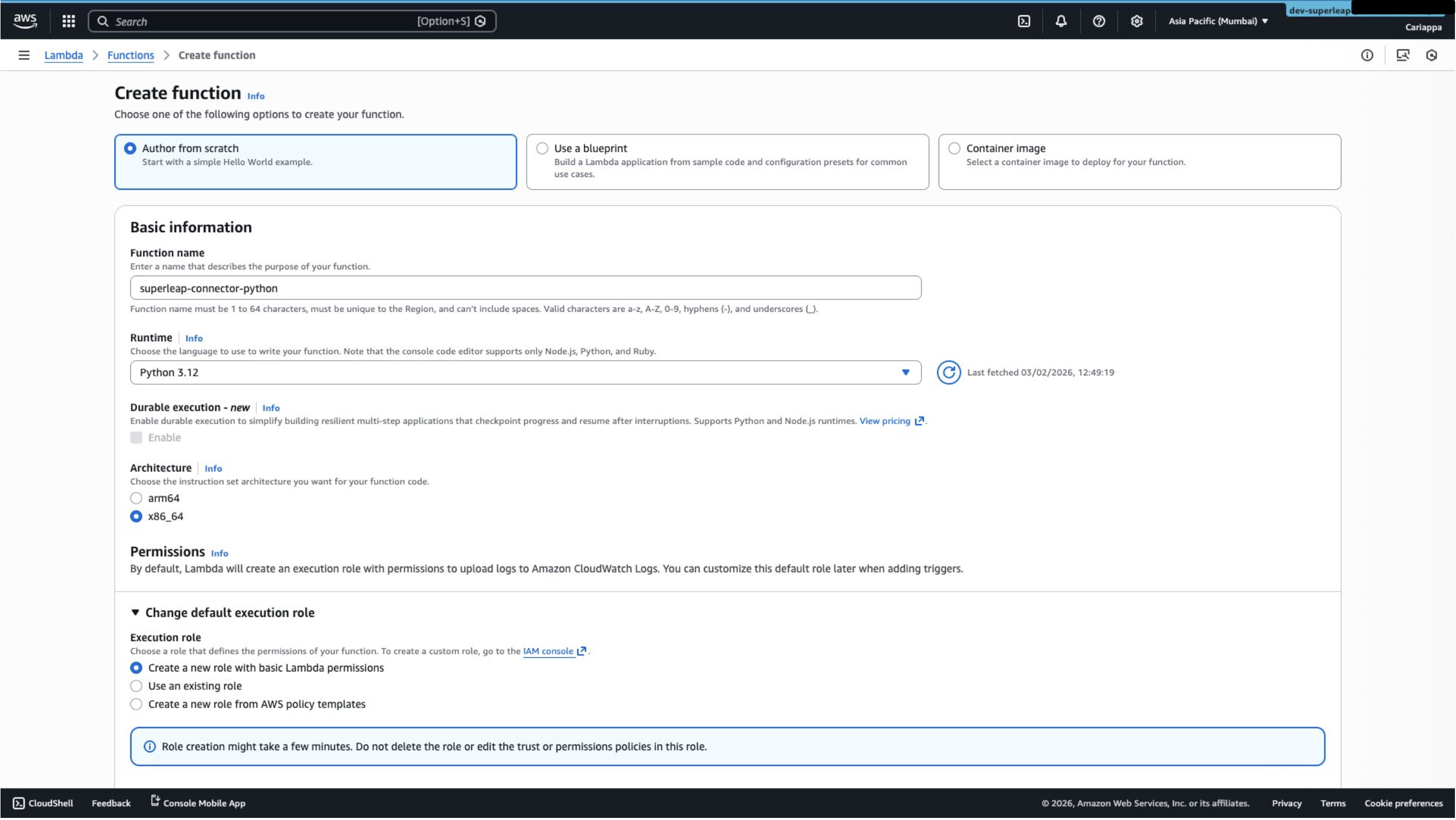
## Step 1: Create a Lambda Function
Create a new Lambda function in AWS. Choose **Python 3.12** as the runtime for compatibility.
 ## Step 2: Upload the Connector Code
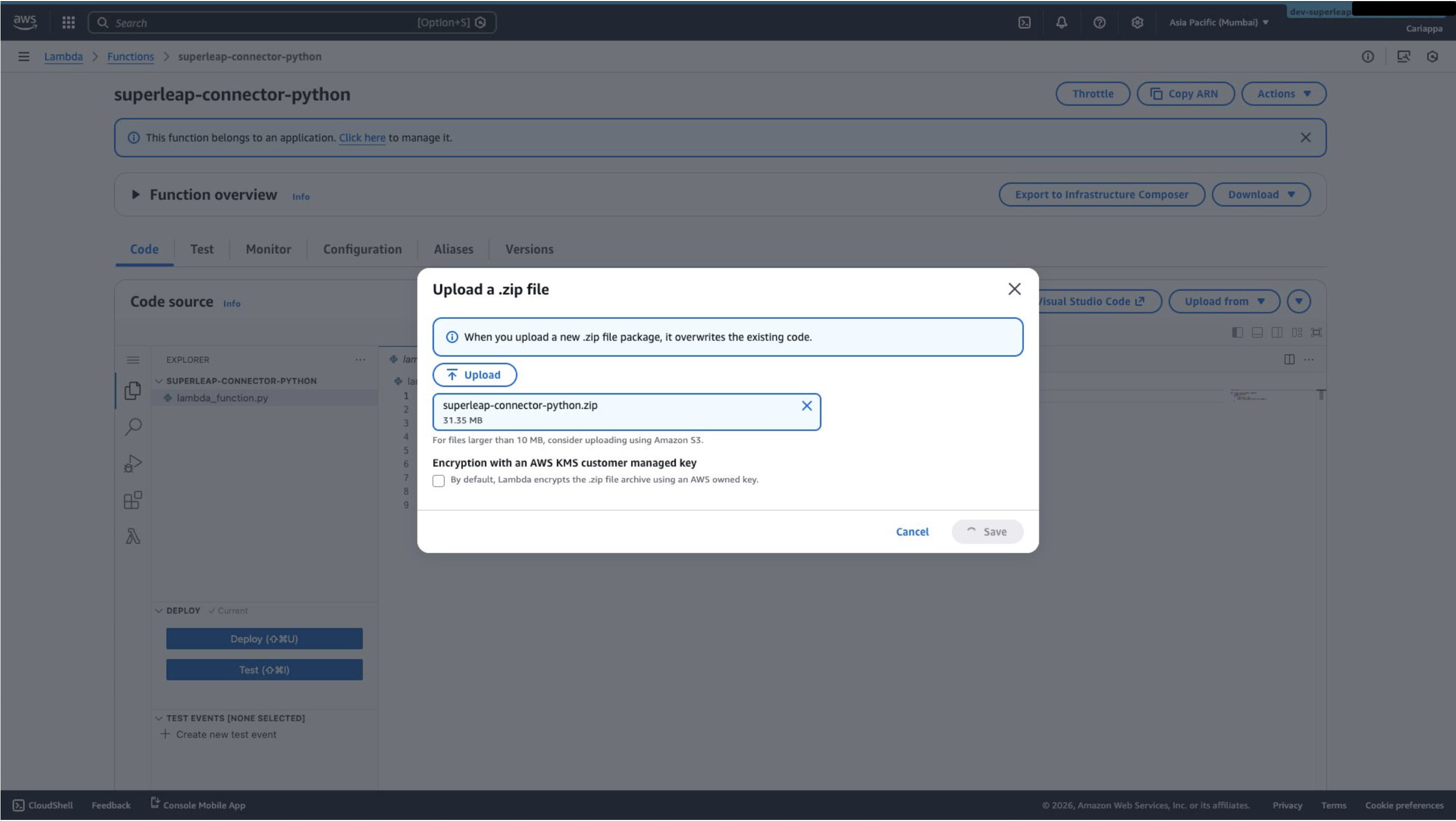
Upload the [`superleap-connector-python.zip`](https://github.com/superleapai/superleap-appflow-connector-python-public/blob/v1.2.0/superleap-connector-python.zip) file to the Lambda function to overwrite the default Lambda code.
## Step 2: Upload the Connector Code
Upload the [`superleap-connector-python.zip`](https://github.com/superleapai/superleap-appflow-connector-python-public/blob/v1.2.0/superleap-connector-python.zip) file to the Lambda function to overwrite the default Lambda code.
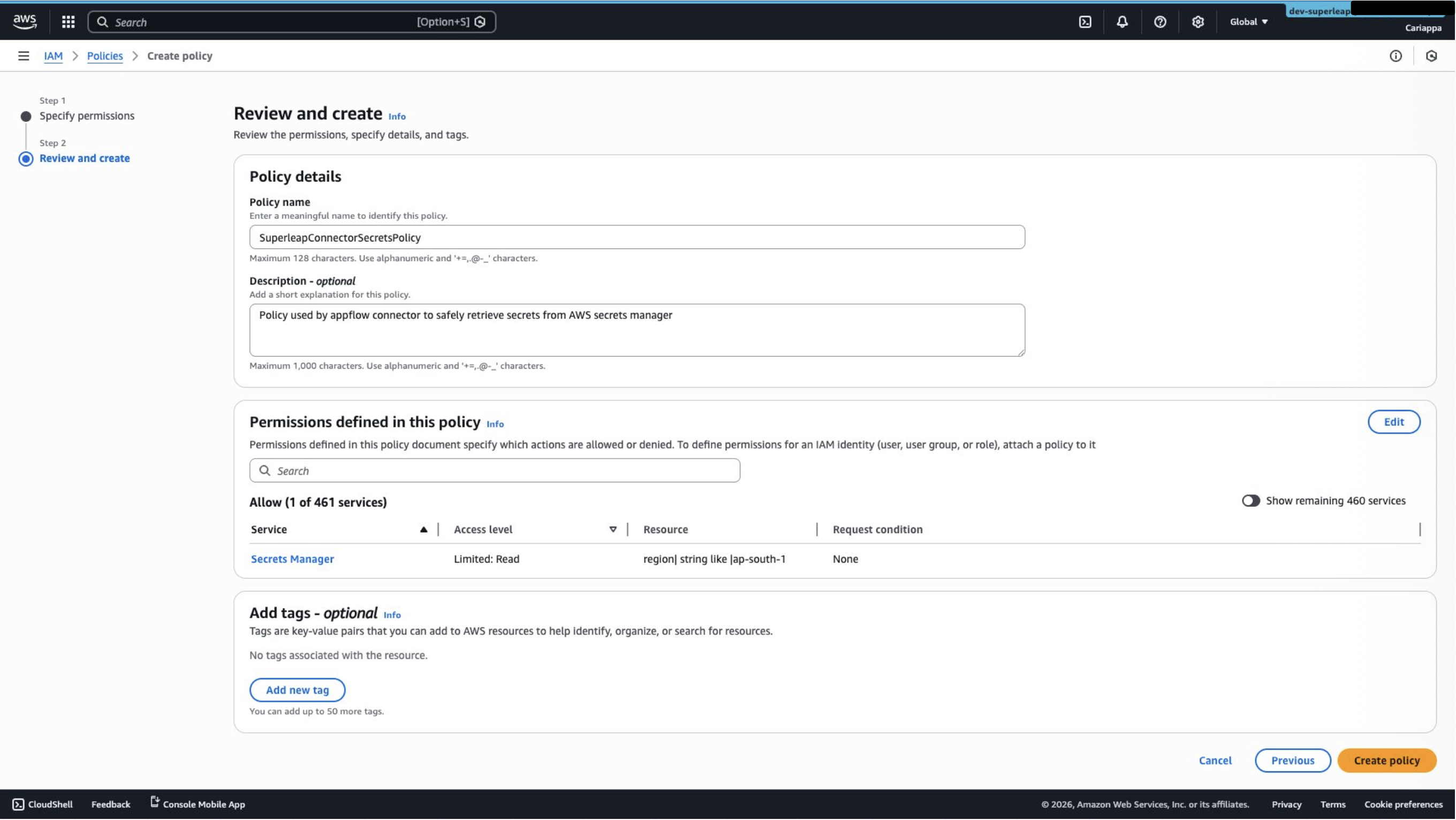
 ## Step 3: Create an IAM Policy
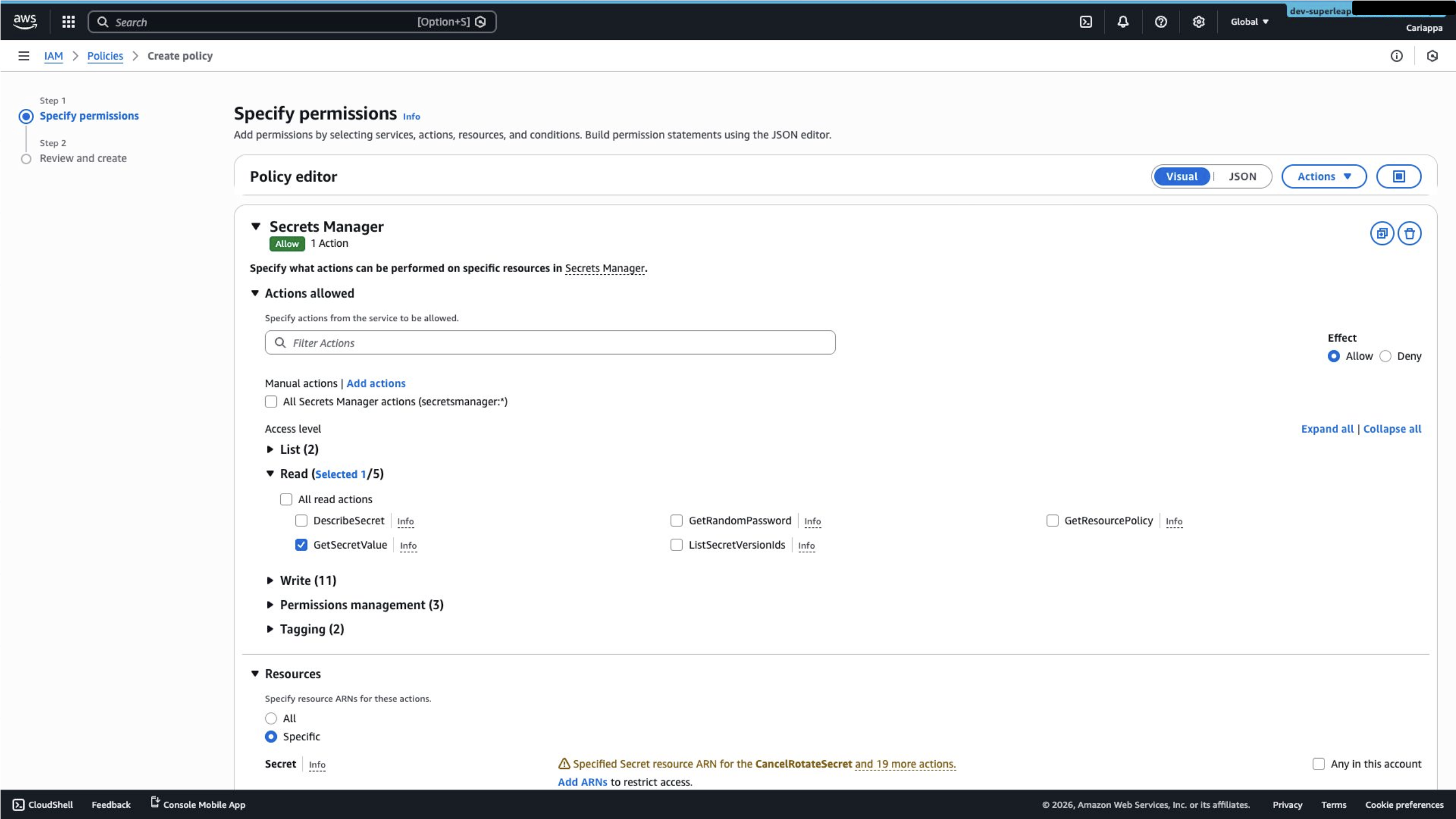
Go to **IAM → Policies** and create a new policy:
1. Choose **Secrets Manager** as the service
2. Add the **GetSecretValue** permission
## Step 3: Create an IAM Policy
Go to **IAM → Policies** and create a new policy:
1. Choose **Secrets Manager** as the service
2. Add the **GetSecretValue** permission
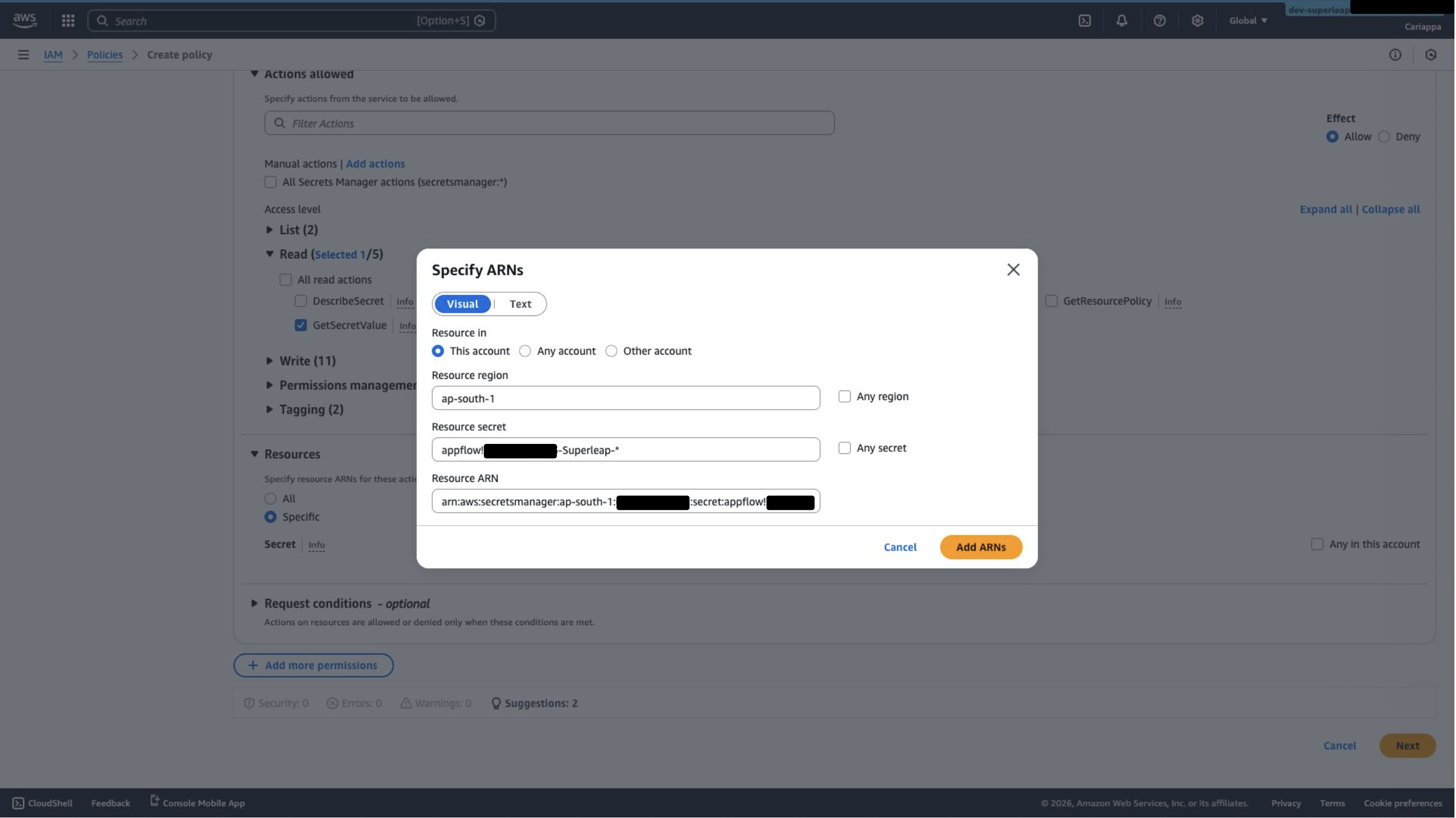
 3. Under **Specify ARNs**, choose your region and set the resource secret format to:
```
appflow!{account_id}-Superleap-*
```
3. Under **Specify ARNs**, choose your region and set the resource secret format to:
```
appflow!{account_id}-Superleap-*
```
 4. Add a name and description, then create the policy
 ## Step 4: Navigate to the Lambda Execution Role
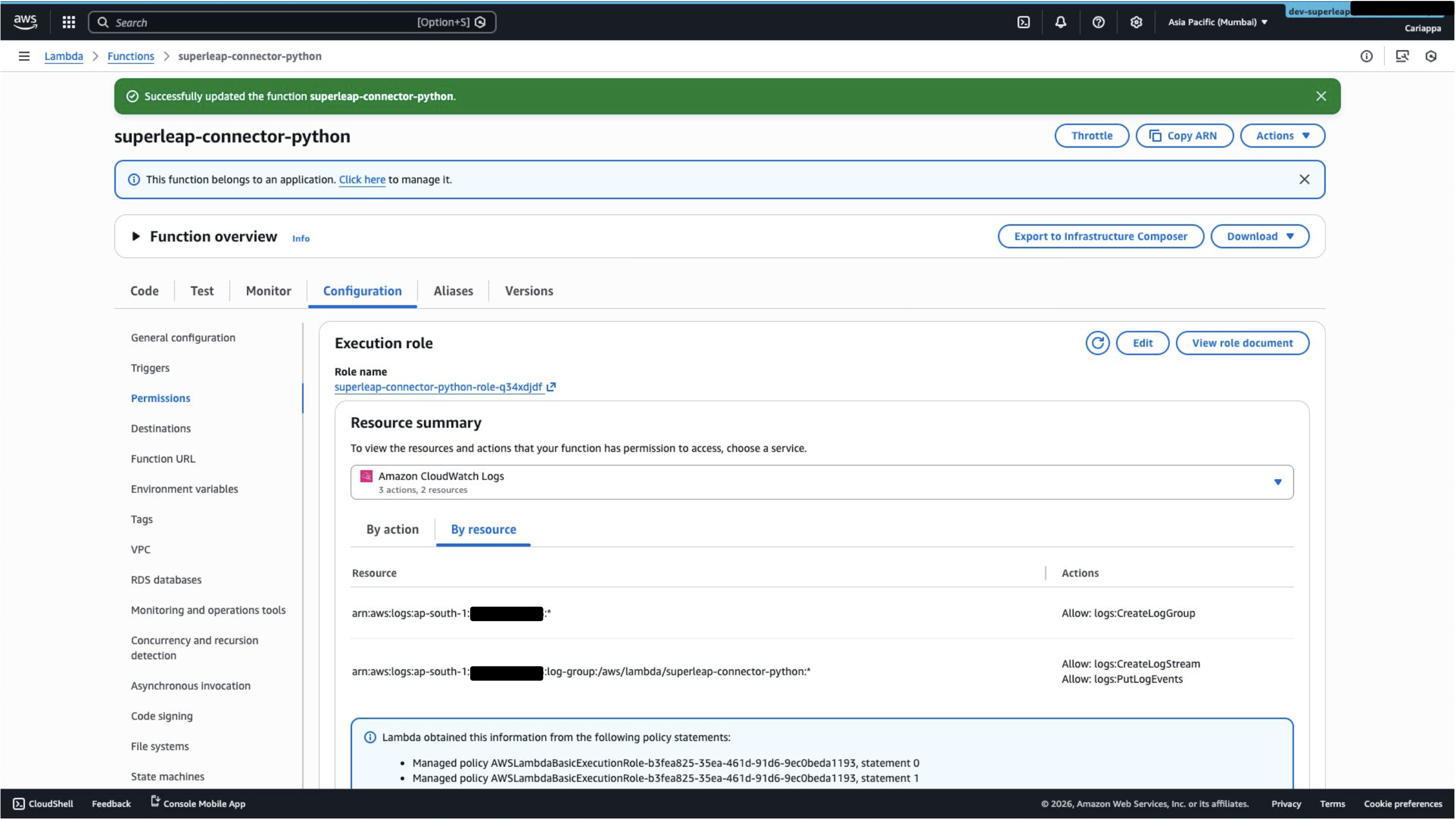
Go to the Lambda function → **Configuration** → **Permissions** → click on the **Role name** shown there. This will take you to the IAM role used by the Lambda function.
## Step 4: Navigate to the Lambda Execution Role
Go to the Lambda function → **Configuration** → **Permissions** → click on the **Role name** shown there. This will take you to the IAM role used by the Lambda function.
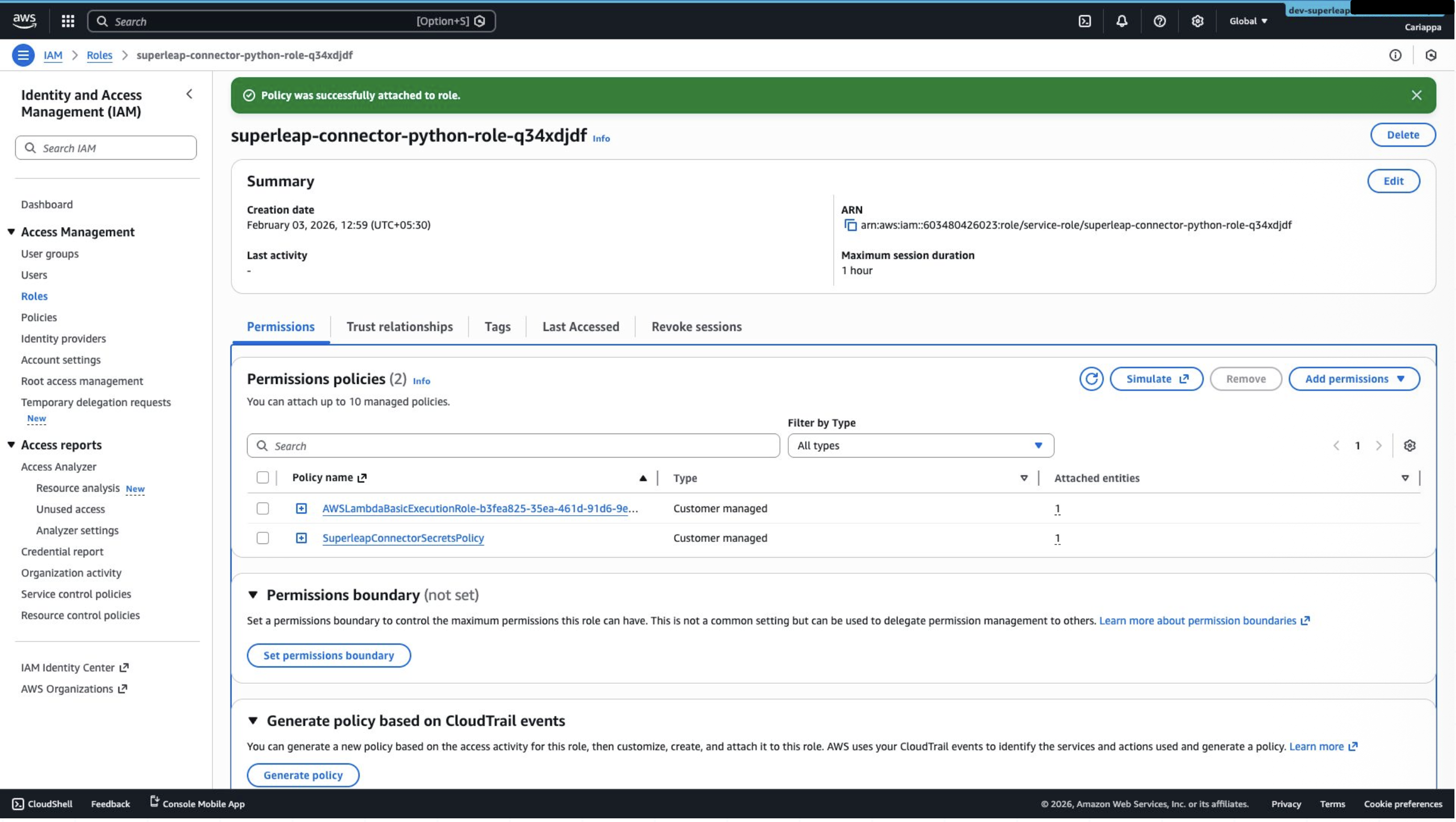
 ## Step 5: Attach the IAM Policy to the Role
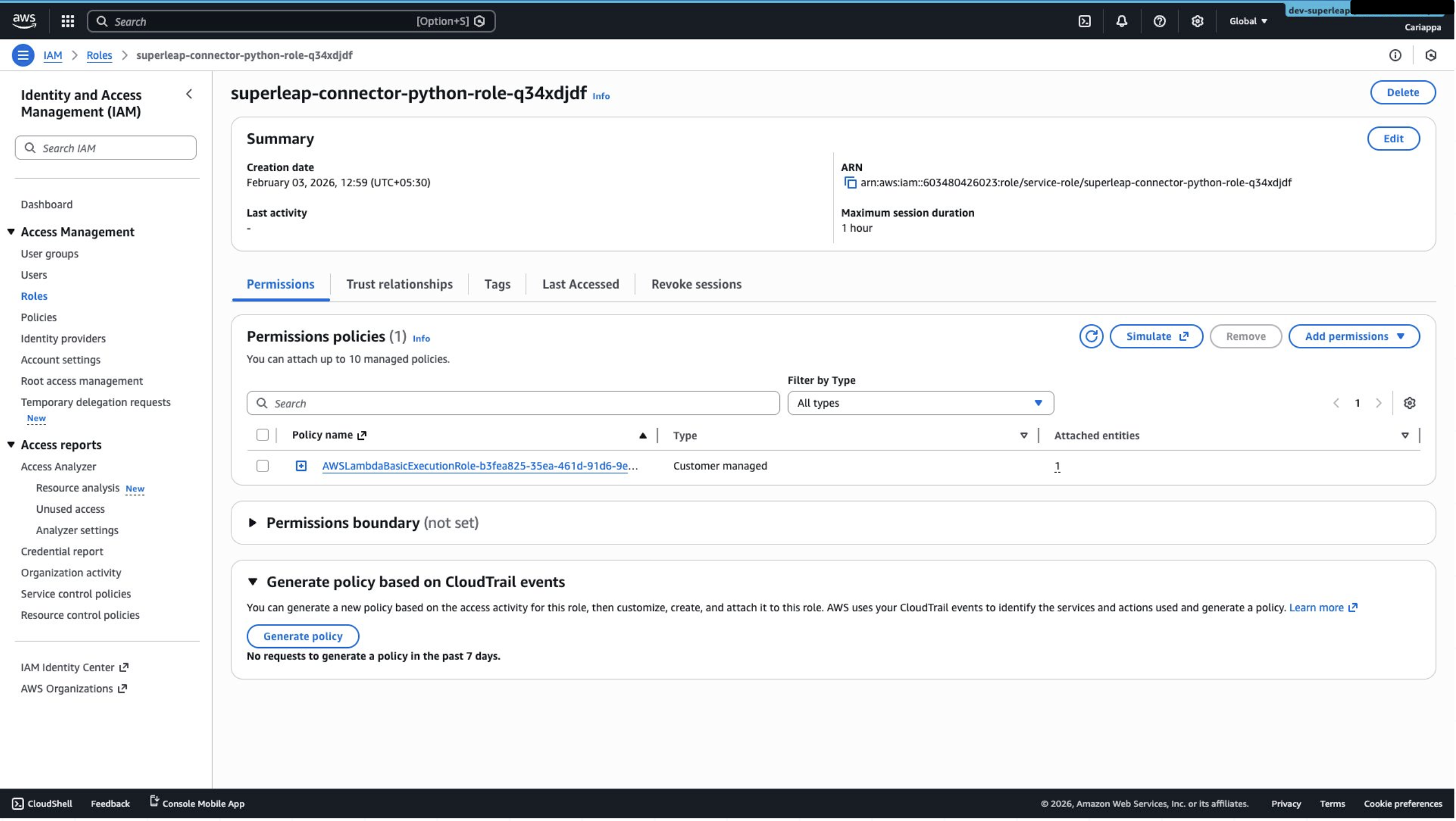
1. Click **Add permission** and attach the policy created in Step 3 to the role
## Step 5: Attach the IAM Policy to the Role
1. Click **Add permission** and attach the policy created in Step 3 to the role
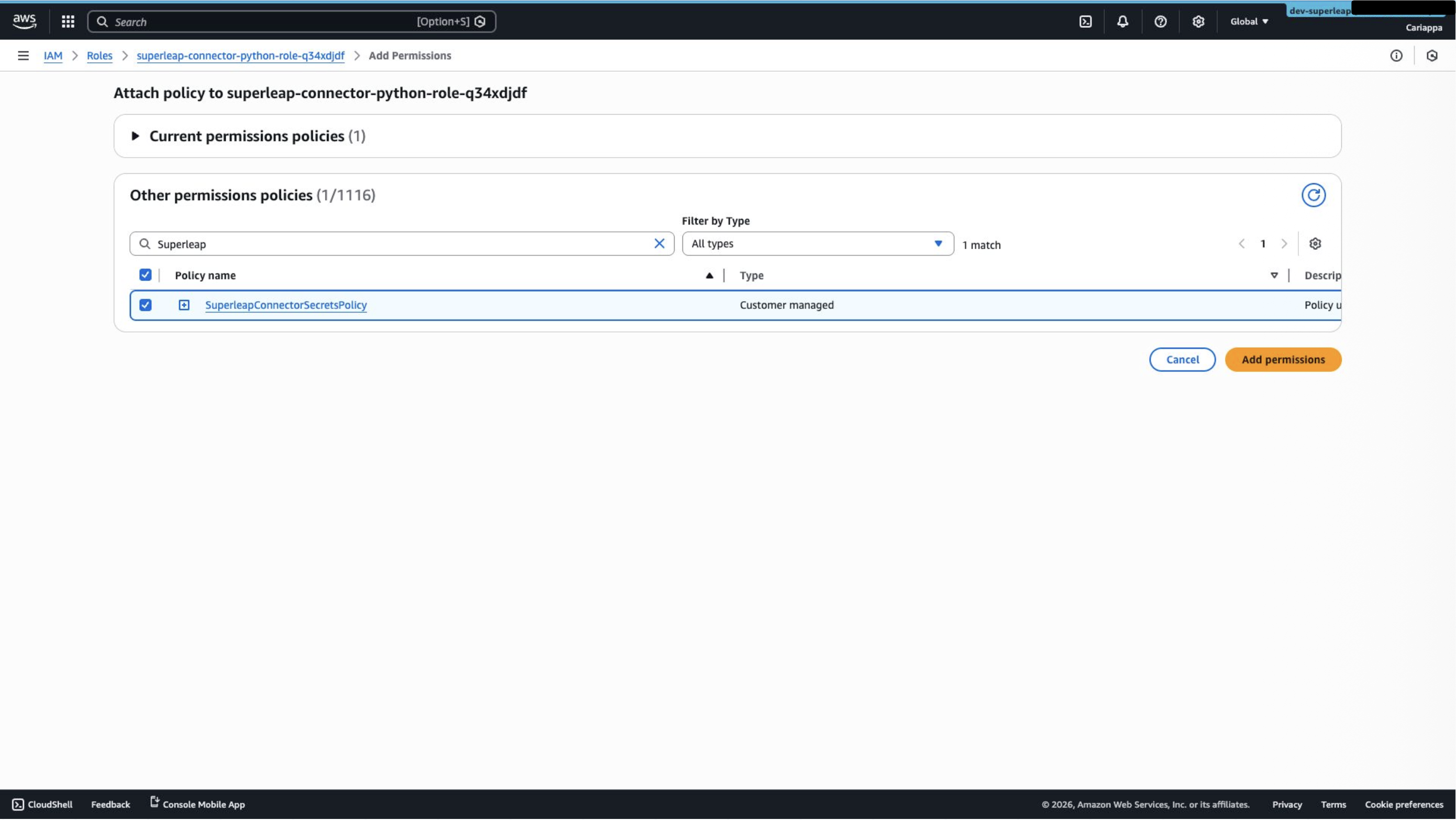 2. Confirm the permission is reflected in the Lambda function's permissions as well
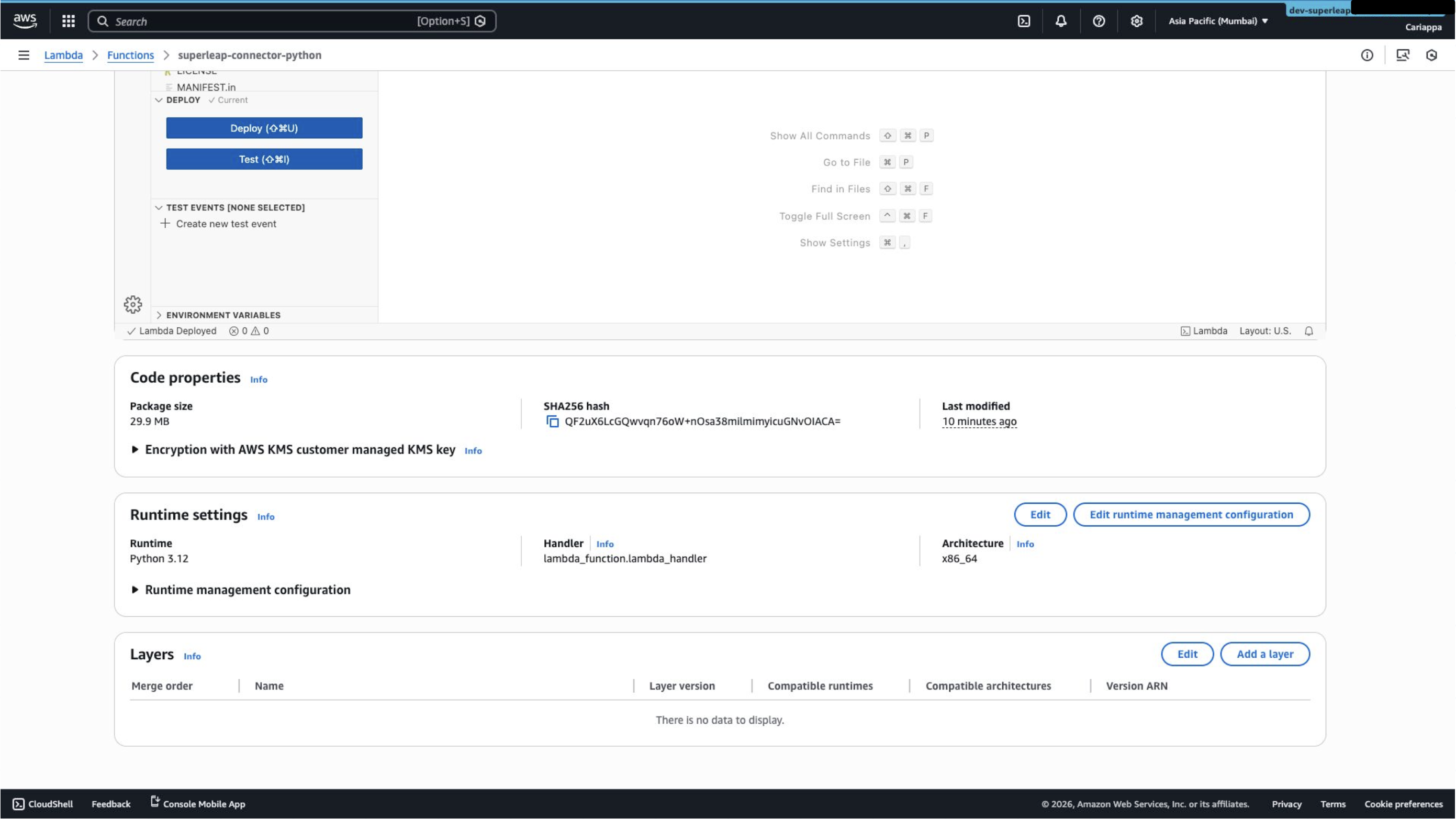
 ## Step 6: Set the Lambda Handler
Edit the **Handler** under **Runtime Settings**:
1. Set the runtime to **Python 3.12**
## Step 6: Set the Lambda Handler
Edit the **Handler** under **Runtime Settings**:
1. Set the runtime to **Python 3.12**
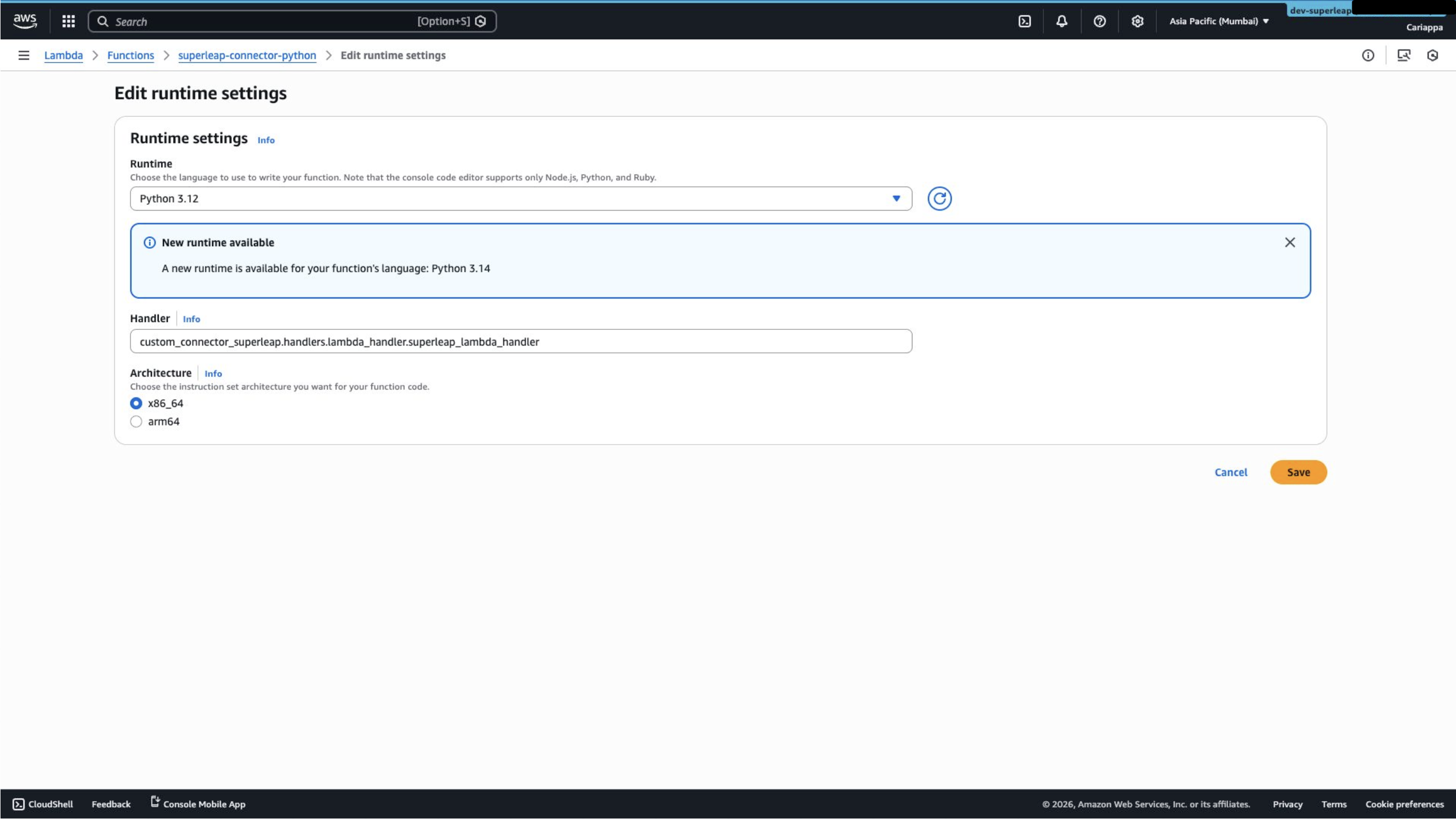
 2. Set the handler to:
```
custom_connector_superleap.handlers.lambda_handler.superleap_lambda_handler
```
2. Set the handler to:
```
custom_connector_superleap.handlers.lambda_handler.superleap_lambda_handler
```
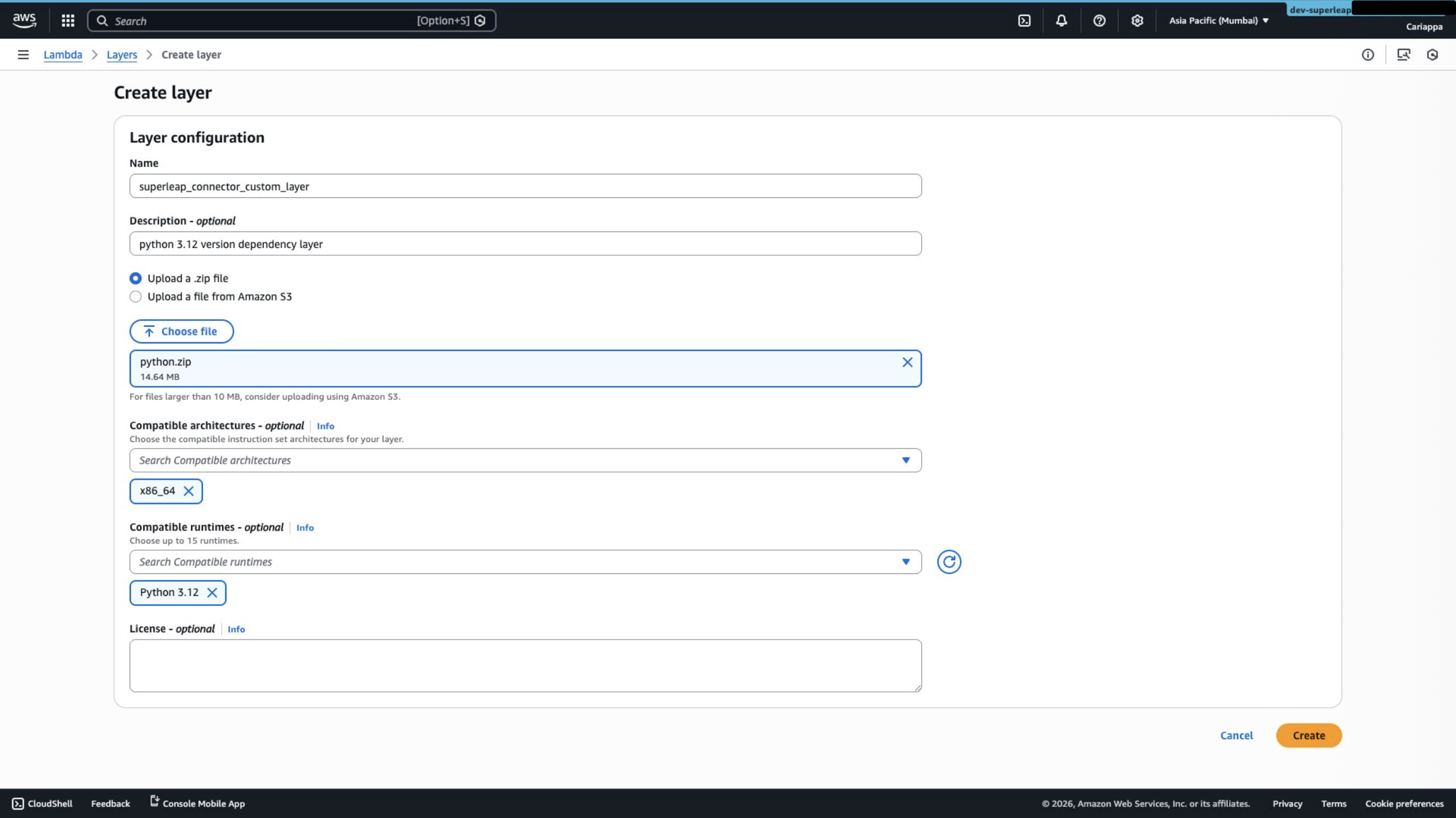
 ## Step 7: Create and Add a Lambda Layer
1. Go to **Lambda → Layers** and create a new layer
2. Upload the [`python.zip`](https://github.com/superleapai/superleap-appflow-connector-python-public/blob/v1.2.0/python.zip) file
3. Set the compatible runtime to **Python 3.12** and architecture to **x86\_64**
## Step 7: Create and Add a Lambda Layer
1. Go to **Lambda → Layers** and create a new layer
2. Upload the [`python.zip`](https://github.com/superleapai/superleap-appflow-connector-python-public/blob/v1.2.0/python.zip) file
3. Set the compatible runtime to **Python 3.12** and architecture to **x86\_64**
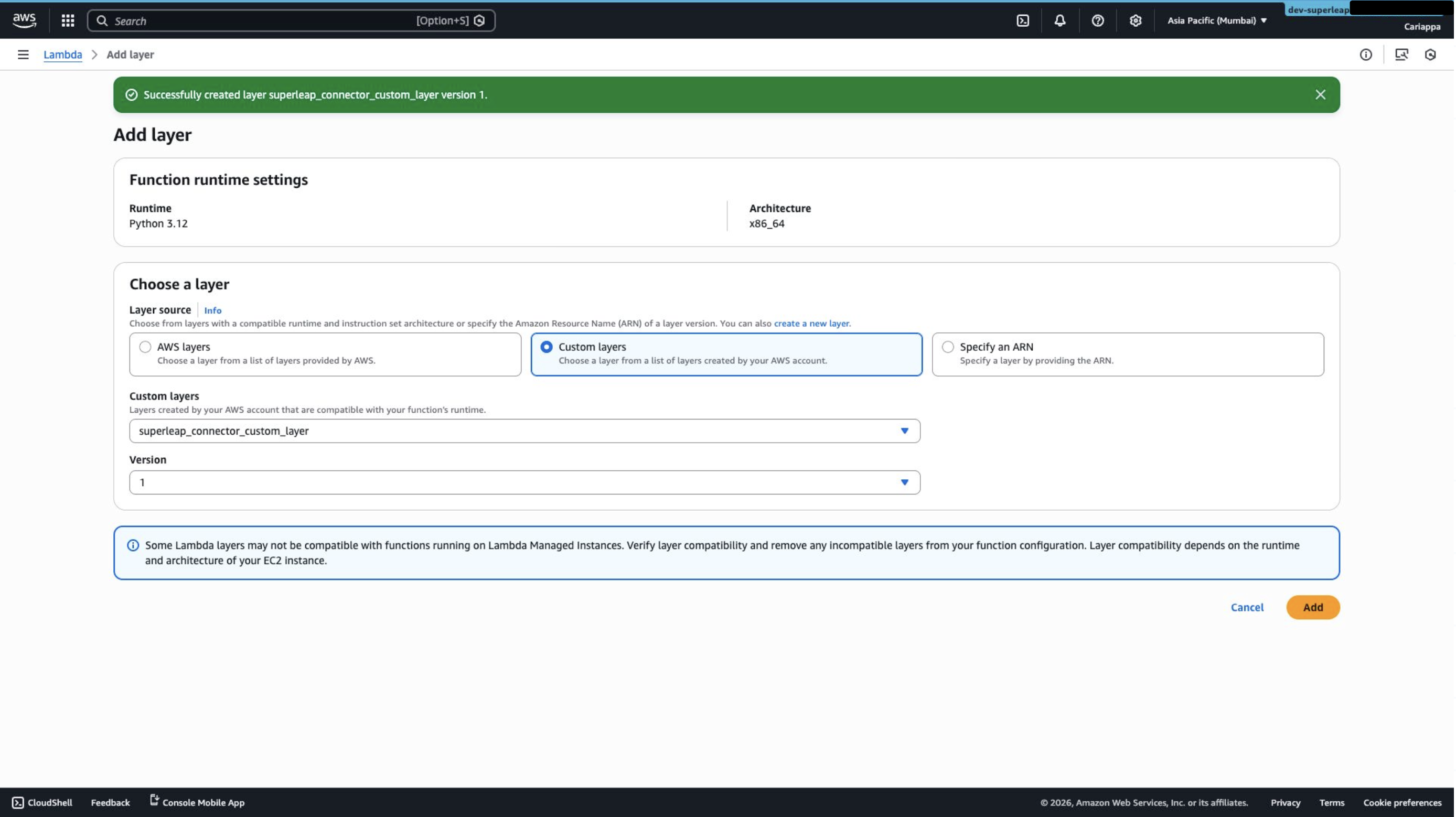
 4. Go back to the Lambda function, scroll down to **Layers**, and click **Add a layer**
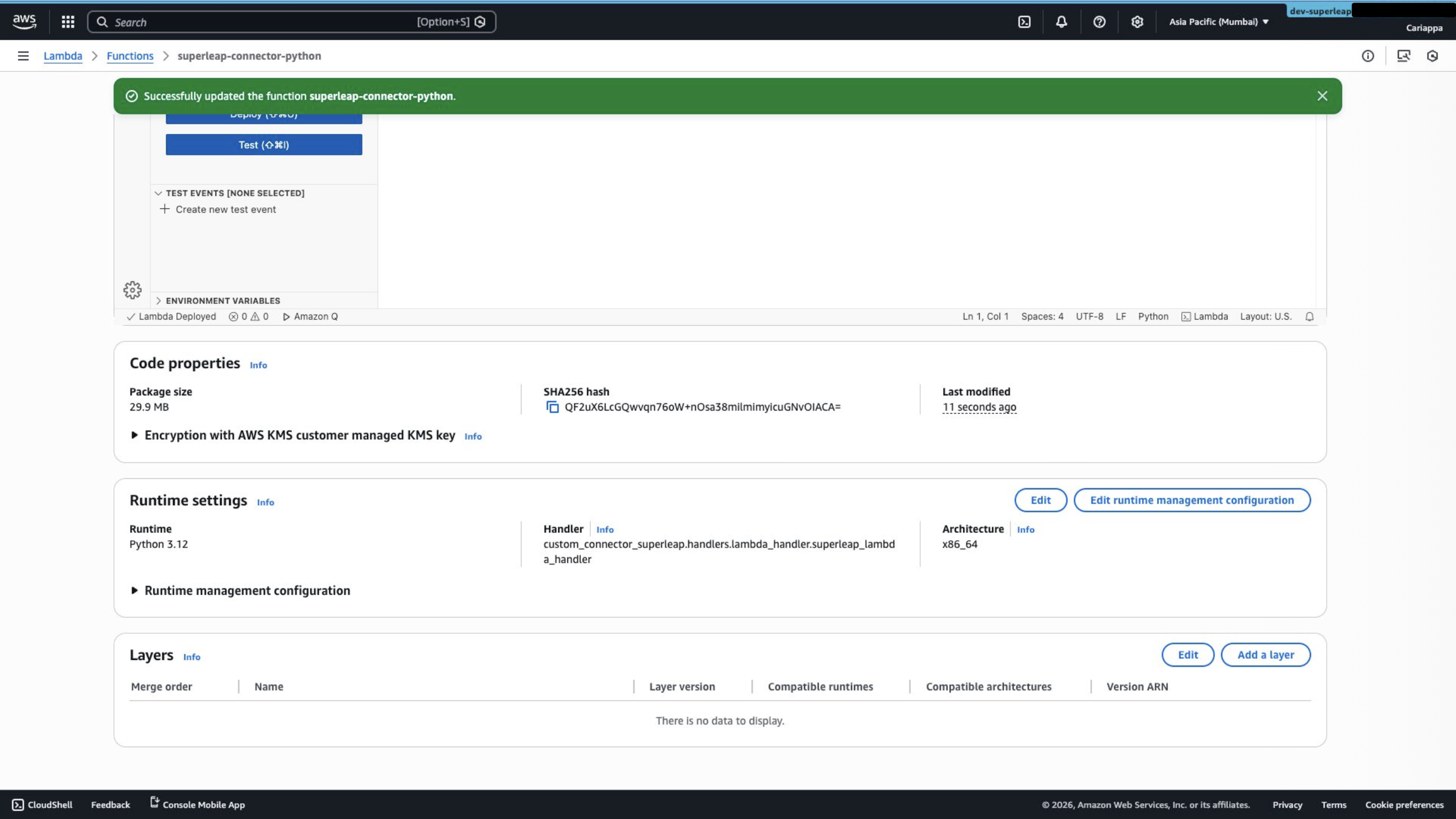 5. Choose **Custom layers** and select the layer created above
 ## Step 8: Add a Resource-Based Policy
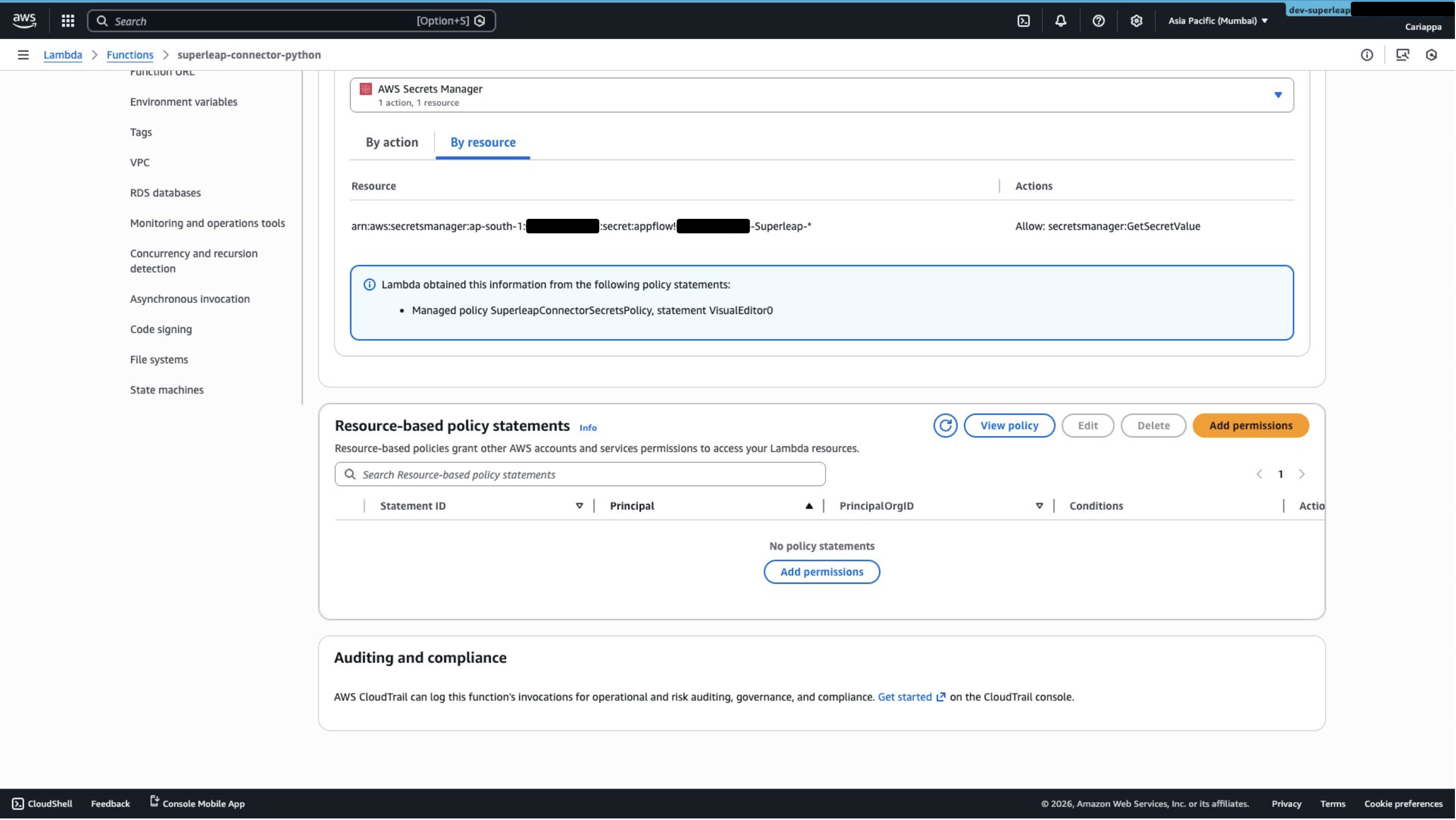
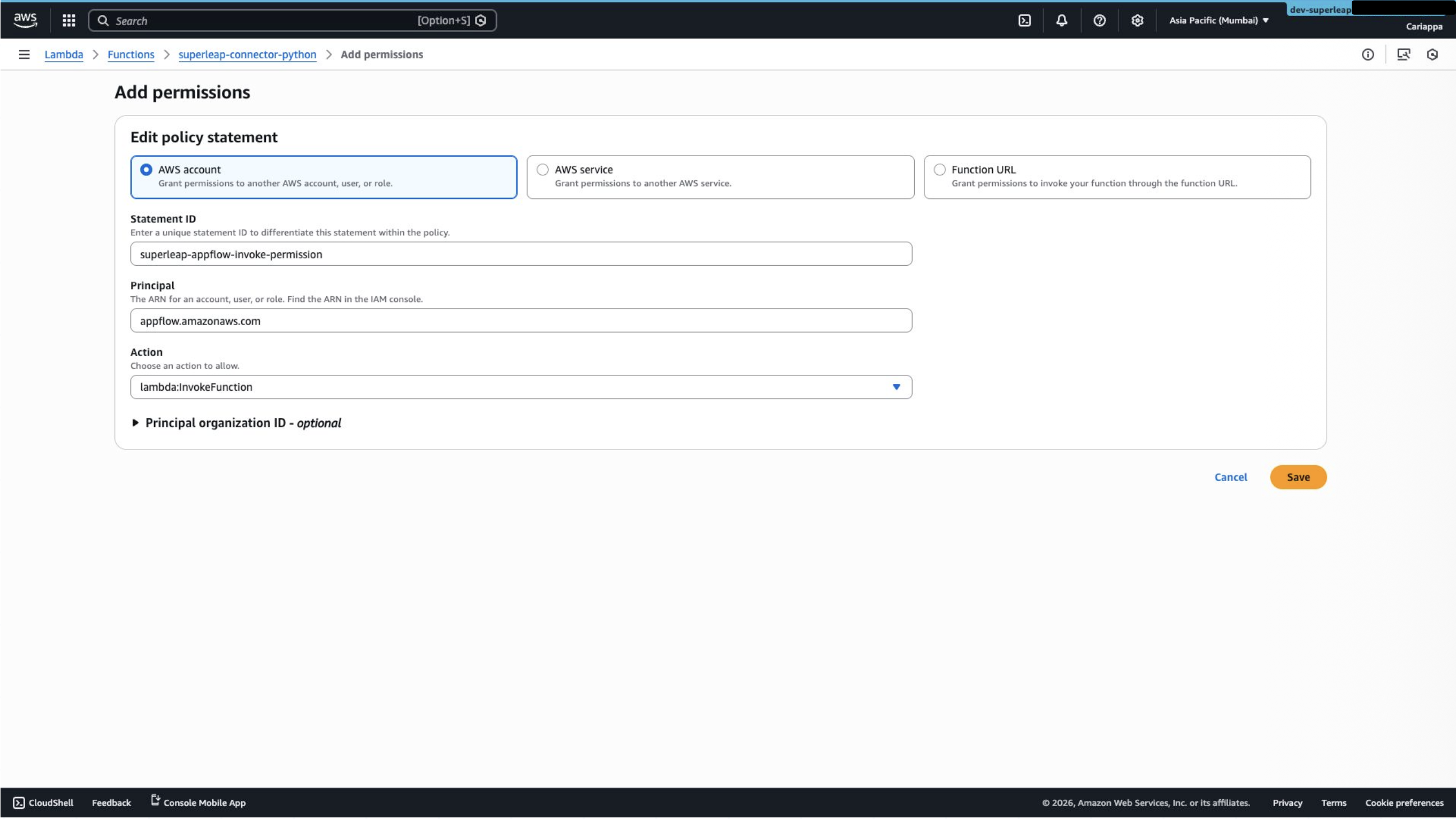
In the Lambda function, scroll down to **Resource-based policy statements** and add a new permission:
## Step 8: Add a Resource-Based Policy
In the Lambda function, scroll down to **Resource-based policy statements** and add a new permission:
 * **Principal**: `appflow.amazonaws.com`
* **Action**: `lambda:InvokeFunction`
* **Principal**: `appflow.amazonaws.com`
* **Action**: `lambda:InvokeFunction`
 Save the policy.
***
Once these steps are complete, proceed to [Configuration](/appflow/configuration) to register the connector in AppFlow and create your first flow.
Save the policy.
***
Once these steps are complete, proceed to [Configuration](/appflow/configuration) to register the connector in AppFlow and create your first flow.