> ## Documentation Index
> Fetch the complete documentation index at: https://docs.superleap.com/llms.txt
> Use this file to discover all available pages before exploring further.
# Configuration
> Register the connector in AppFlow and create flows
After completing the [Setup](/appflow/setup), follow these steps to register the connector in Amazon AppFlow and start creating flows.
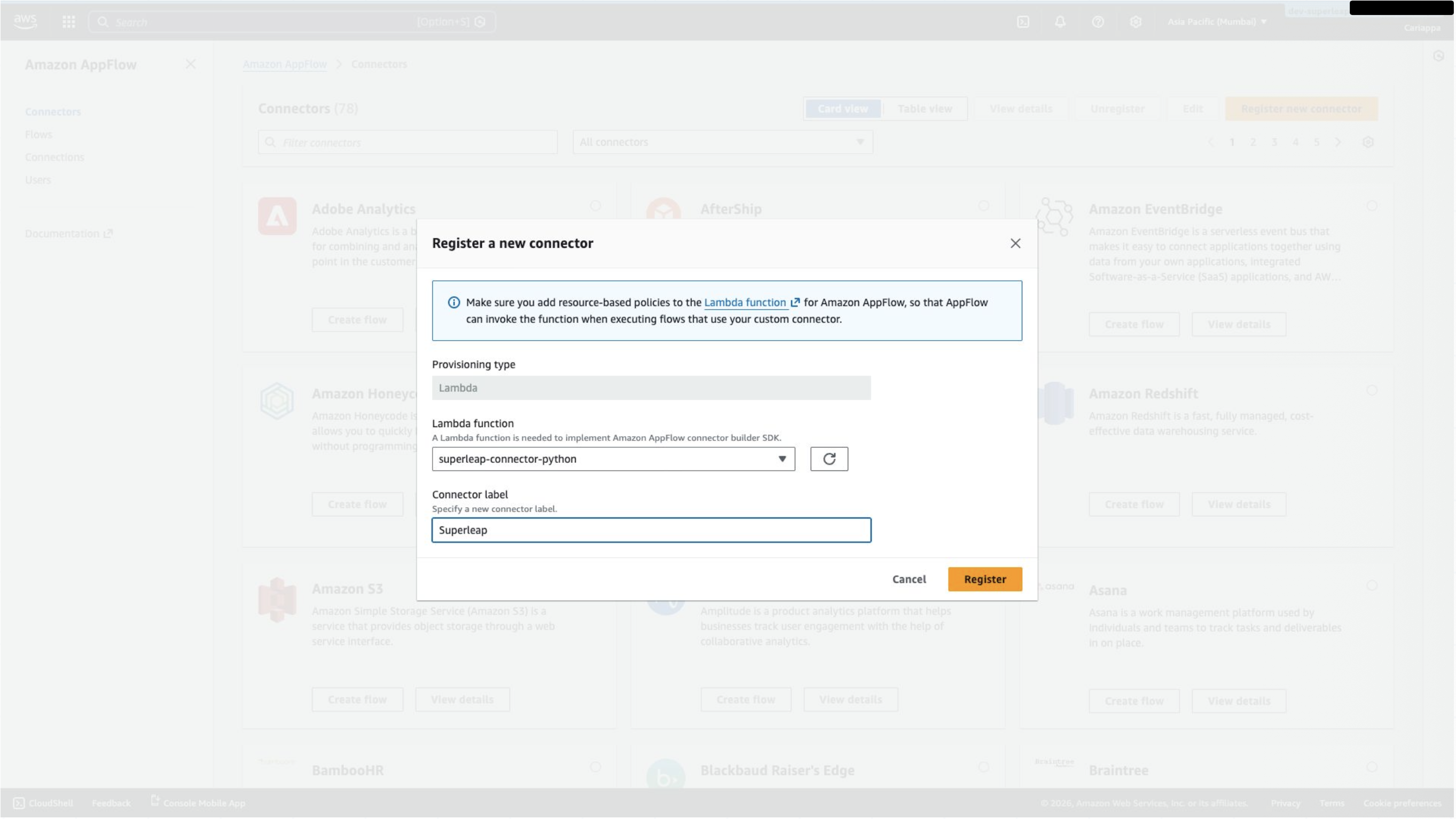
## Step 9: Register the Connector in AppFlow
1. Go to **AppFlow → Connectors → Register new connector**
2. Choose the Lambda function created during setup
3. Provide a suitable label for the connector
 ## Step 10: Create a Connection
1. Create a new connection using the registered connector
2. Set the **API key** field to `api_key`
3. Enter the **URL** provided by Superleap
## Step 10: Create a Connection
1. Create a new connection using the registered connector
2. Set the **API key** field to `api_key`
3. Enter the **URL** provided by Superleap
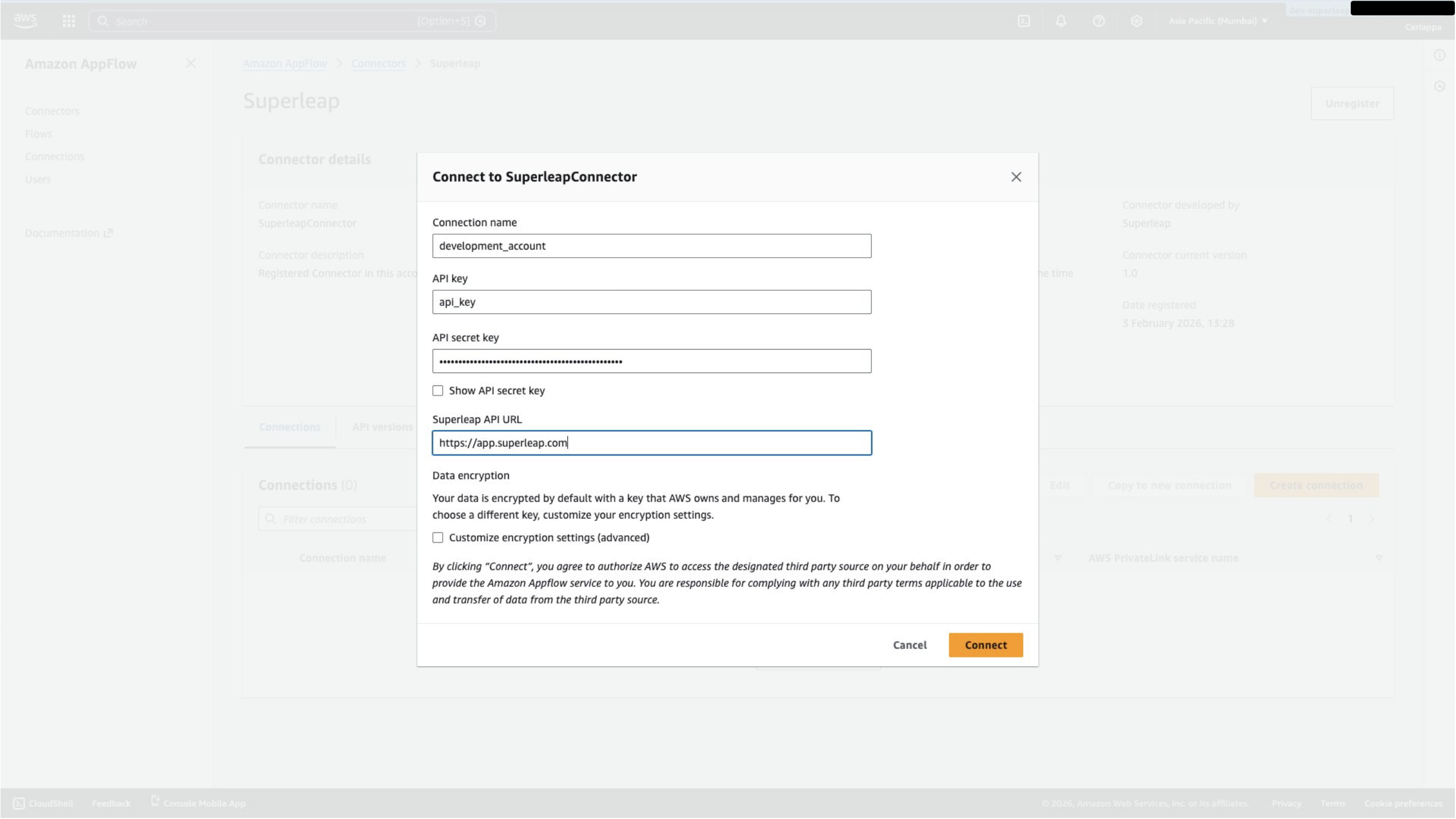 You can use your own API secret key from **Superleap → Settings → Organisations & API Access → API Access**. Alternatively, request one from your account manager.
## Creating Flows
After the connection is established, you can create AppFlow flows using Superleap as the source and route data to your desired destination.
You can use your own API secret key from **Superleap → Settings → Organisations & API Access → API Access**. Alternatively, request one from your account manager.
## Creating Flows
After the connection is established, you can create AppFlow flows using Superleap as the source and route data to your desired destination.